
 DeltaSnap
  DriveSync
  Noject
  DeltaSync
 The watchlist
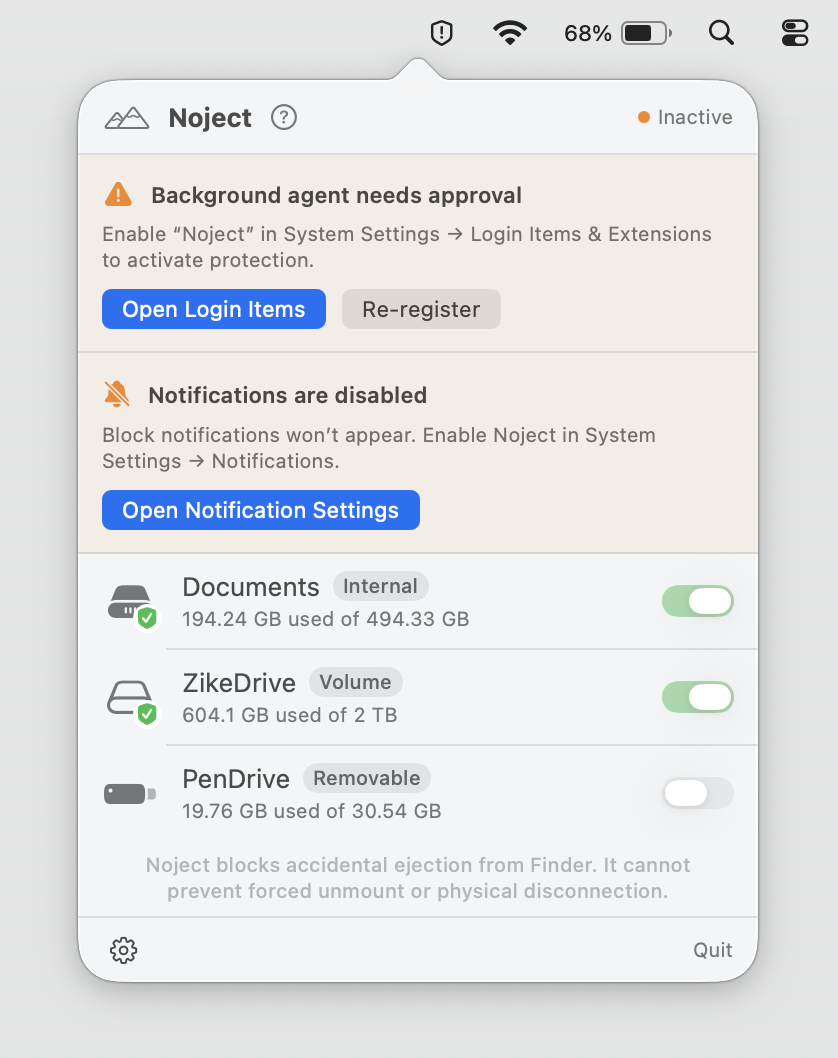
Open Noject from the menu bar to see a list of all currently mounted volumes. Toggle the switch next to any volume to add it to your Protected list.
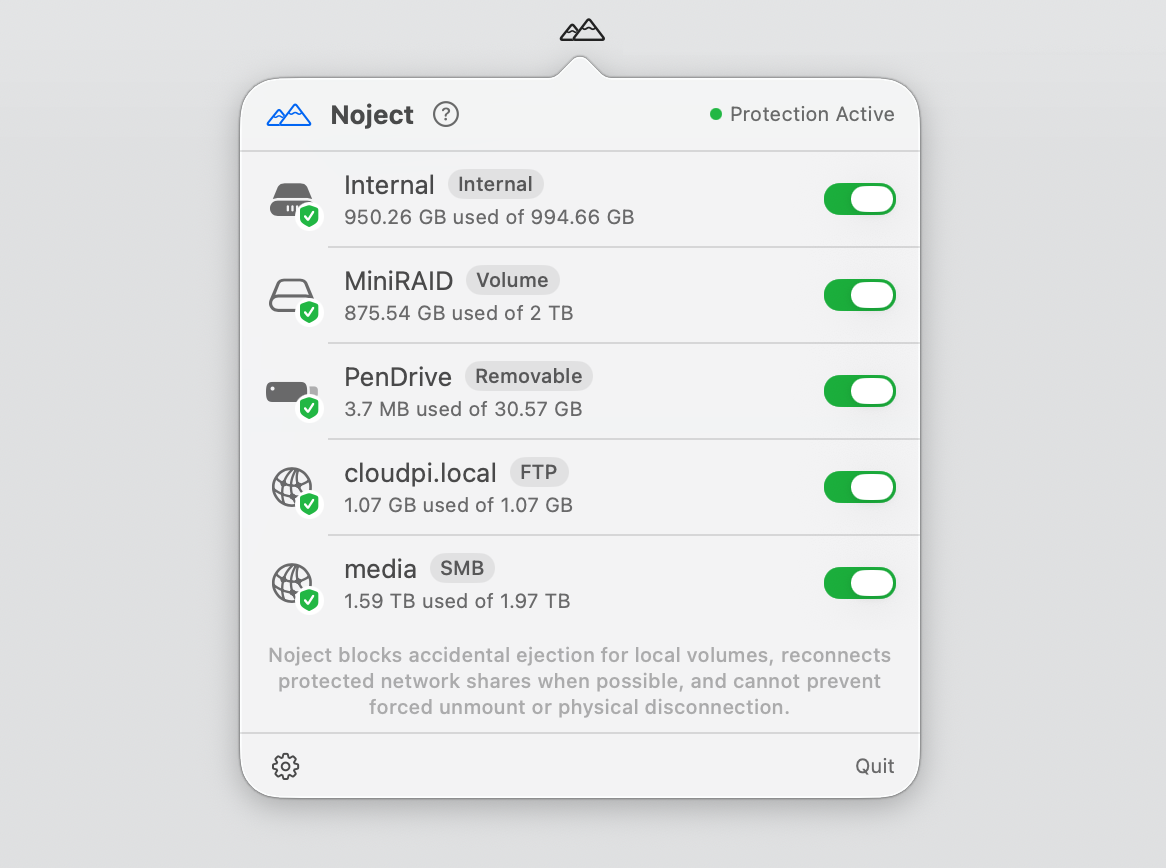
Noject identifies volumes by their UUID (Universally Unique Identifier). This ensures that even if you rename a drive or move it to a different port, Noject will still recognize it and enforce protection.
Persistence
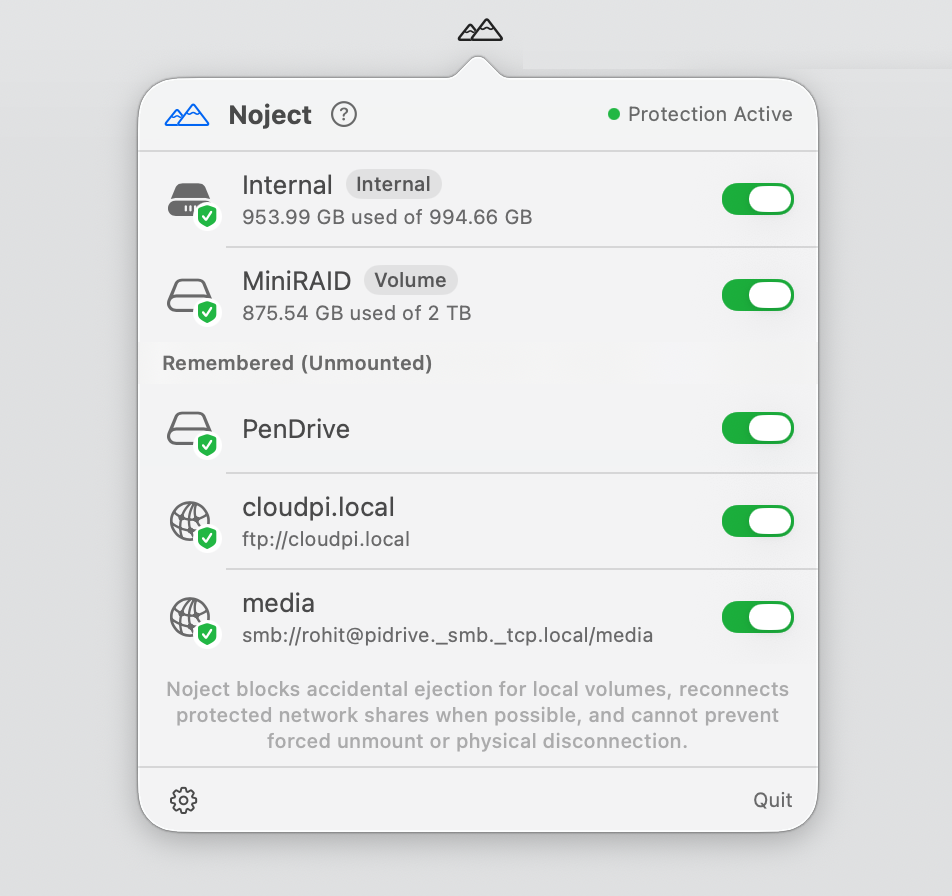
Noject remembers every drive you have ever protected. If a protected drive is unmounted (manually or by being unplugged) and later re-attached, Noject automatically identifies it and restores protection immediately.
Drives you've previously protected that aren't currently mounted show up in a separate Remembered (Unmounted) section at the bottom of the menu. You can toggle them off there to forget them entirely, or leave them on so protection resumes the next time they come back.
Auto-Start
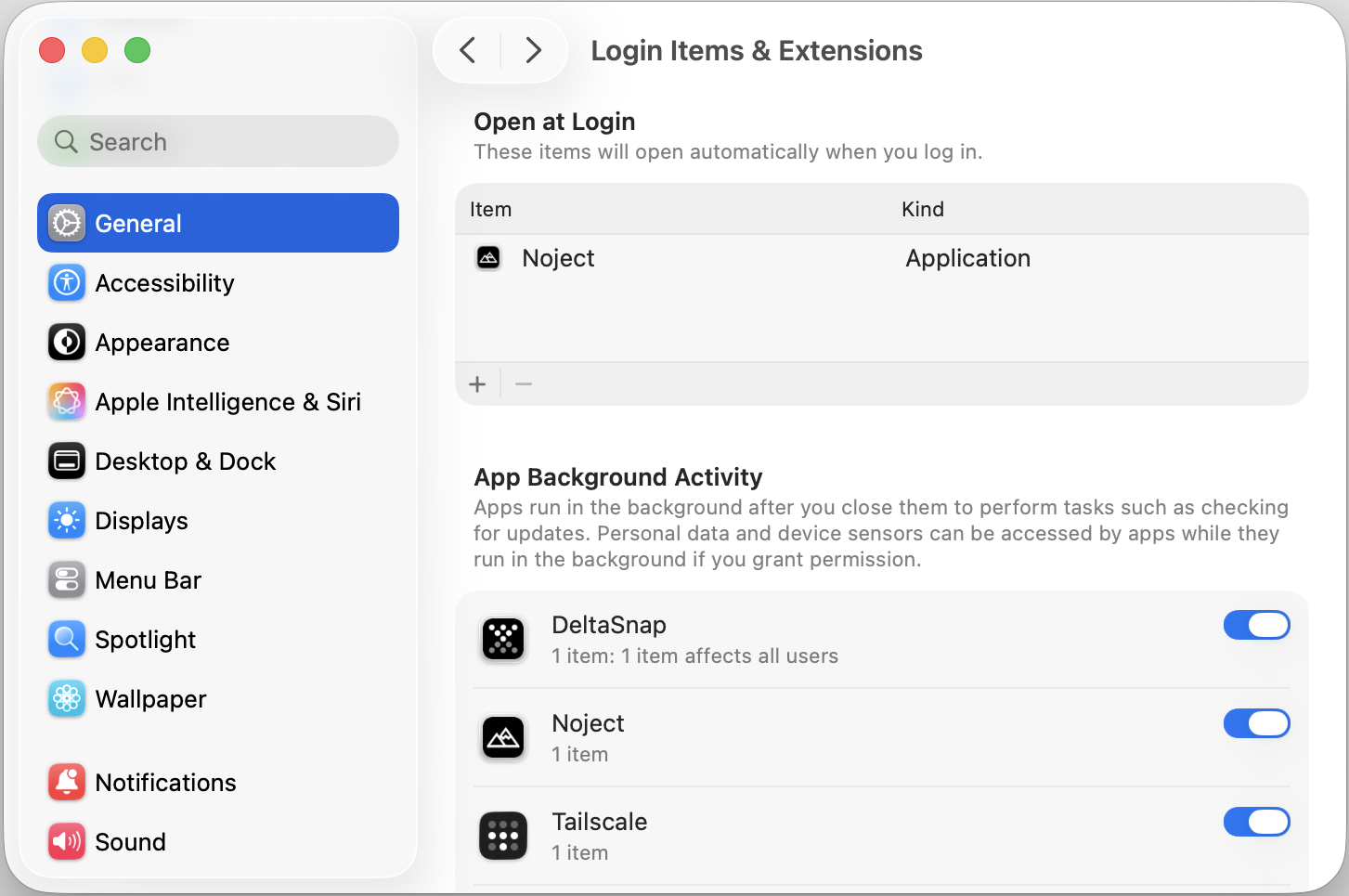
Noject is designed to be "set and forget." By default, it adds itself to your Login Items so that the protection agent is active from the moment you boot your Mac. You can manage this in System Settings → General → Login Items.
Notifications
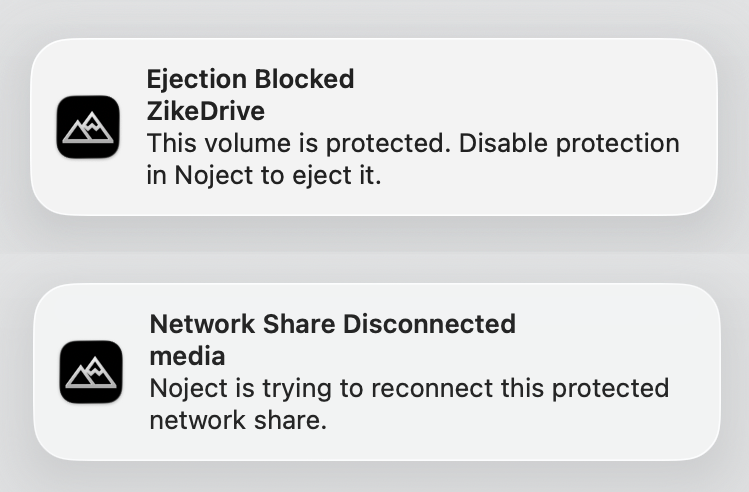
When Noject blocks an ejection attempt, it surfaces a native macOS notification, titled Ejection Blocked, that names the protected volume. Repeated ejection attempts against the same volume are coalesced into a single notification so a "force eject" loop in Finder won't spam your Notification Center.
Preventing Automatic Sleep On AC Power
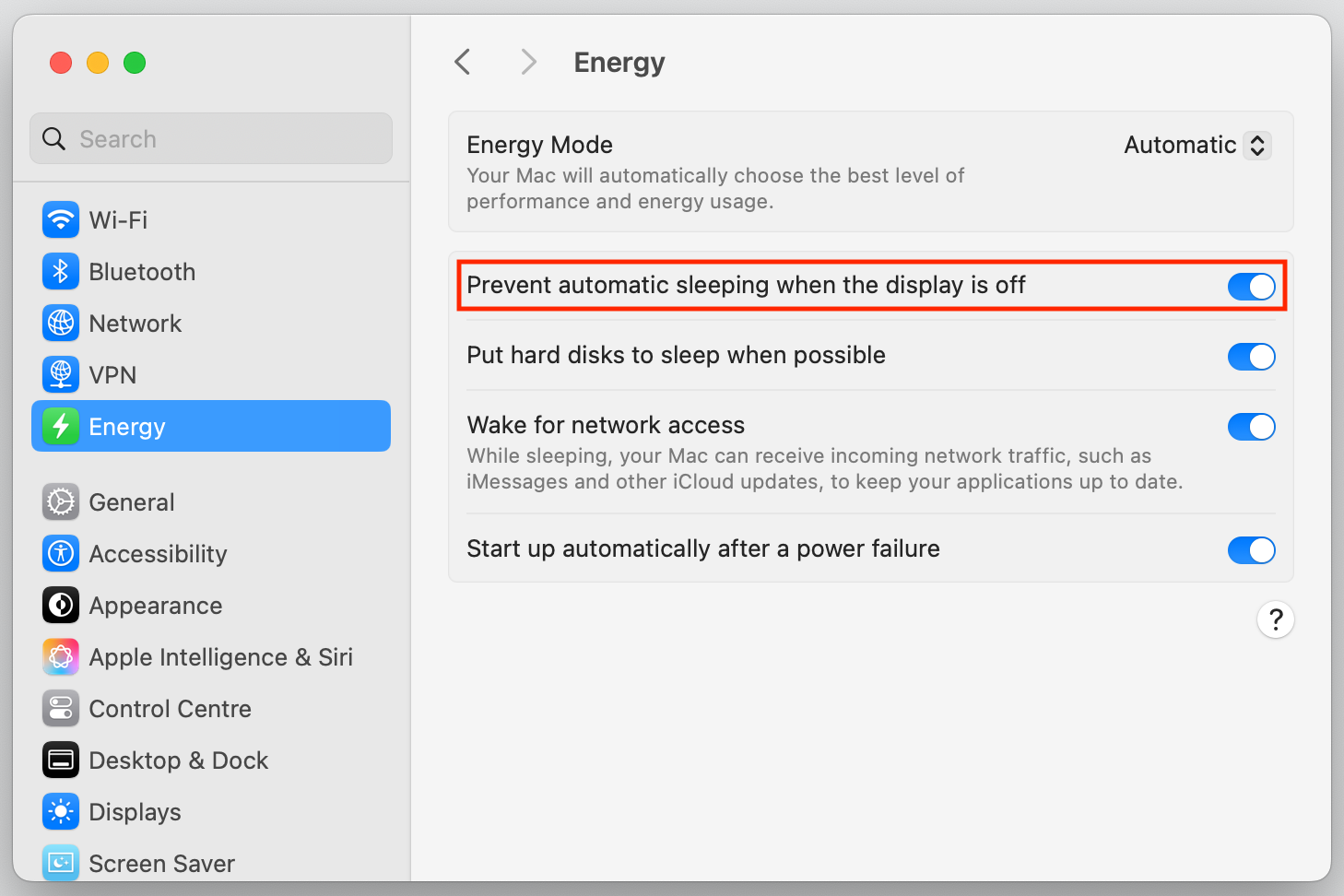
For headless Mac minis and Mac Studios and those with display off, to prevent your Mac from automatically sleeping open System Settings > Energy, and disable the "Prevent automatic sleeping when the display is off". For MacBooks, go to System Settings > Battery > Options and enable "Prevent automatic sleeping on power adapter when the display is off".
Health Checks
Noject re-checks the background agent's status about once a minute. If protection is paused (for example, because the helper was disabled in Login Items & Extensions or stopped responding), Noject automatically opens the menu, posts a Protection Paused notification, and shows an inline banner with a one-click fix.
Network shares
Mounted network shares appear in the same list as local drives, tagged with their protocol (SMB, AFP, FTP, or FTPS). Toggle the switch to protect one. Protection means something different here: a network share can't be force-ejected the way a local disk can, but it can drop on its own when the server reboots, the network blips, or your Mac sleeps and wakes. So instead of blocking ejection, Noject keeps the share reconnected.
When a protected share disconnects, Noject asks Finder to remount it by its URL. If macOS doesn't already have the credentials in your Keychain, Finder shows its standard connection prompt so you can enter the username and password (and choose to remember them).
By default Noject makes two reconnection attempts: one immediately, then one more 30 seconds later. This is deliberately conservative, so a brief outage reconnects on its own without Noject hammering the server or repeatedly triggering credential prompts (which on some setups can lock an account after too many failed attempts).
Noject identifies a protected share by its remount URL (protocol, host, and share path) plus its mount point. It stores that URL with any password stripped out: credentials live in the macOS Keychain, never in Noject's configuration.
Shares you've protected but that aren't currently mounted show up in the Remembered (Unmounted) section, the same as offline drives. Right-click an entry to:
- Reconnect: trigger a remount immediately rather than waiting for the next automatic attempt.
- Disconnect Once (bypass): unmount the share once without forgetting it. Automatic reconnection stays paused until the share is mounted again, so you can step away from it deliberately.
- Forget this share: remove it from the protected list entirely.
Reconnecting hands the share URL to Finder exactly the way the in-app help button hands a link to your browser. Noject itself opens no network connections and never sees your share credentials.