
 DeltaSnap
  DriveSync
  Noject
  DeltaSync
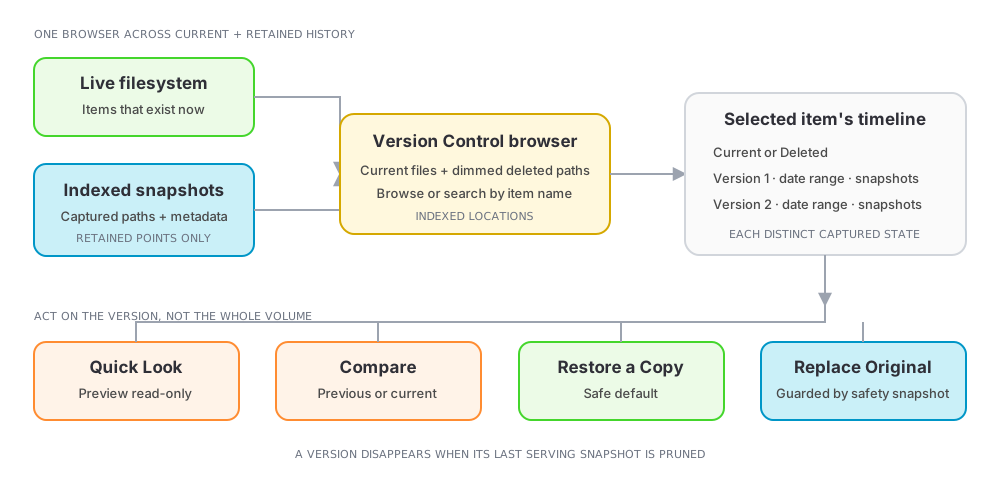
 Version Control presents snapshot history by file and folder instead of making you choose a snapshot first. It combines the current filesystem with indexed historical paths, then shows a version timeline for the selected item.
When it becomes available
A volume needs at least one indexed snapshot. That can be one DeltaSnap made, or an external one from Time Machine, Carbon Copy Cloner, SuperDuper, Arq, or any other tool that leaves APFS snapshots behind. Reading a snapshot is a read-only operation, so whose snapshot it is makes no difference to the history it can serve.
If Version Control is not ready:
- create a safety or protected snapshot;
- wait for its Indexed state; and
- return to the Version Control tab.
Alternatively, comparing any two snapshots indexes both of them, which is often the quickest way to bring an existing Time Machine or CCC snapshot into your history.
Proactive indexing is enabled by default. You can change its mode, battery behavior, and exclusions under DeltaSnap → Settings → Indexing.
Existing DeltaSnap snapshots are discovered automatically: after a reinstall, or when an external volume that already carries DeltaSnap snapshots is connected, the helper registers and indexes them on its own, within moments of the volume mounting, and again on an hourly reconciliation pass as a safety net.
Browse files across time
The left browser is a union of:
- items that exist on the live volume now;
- captured items that were later deleted; and
- historical children that no longer exist at their old path.
Dimmed rows exist only in snapshot history. Select a row to load its version timeline. On the startup Data volume, Version Control initially focuses on your home folder; other volumes open at their root.
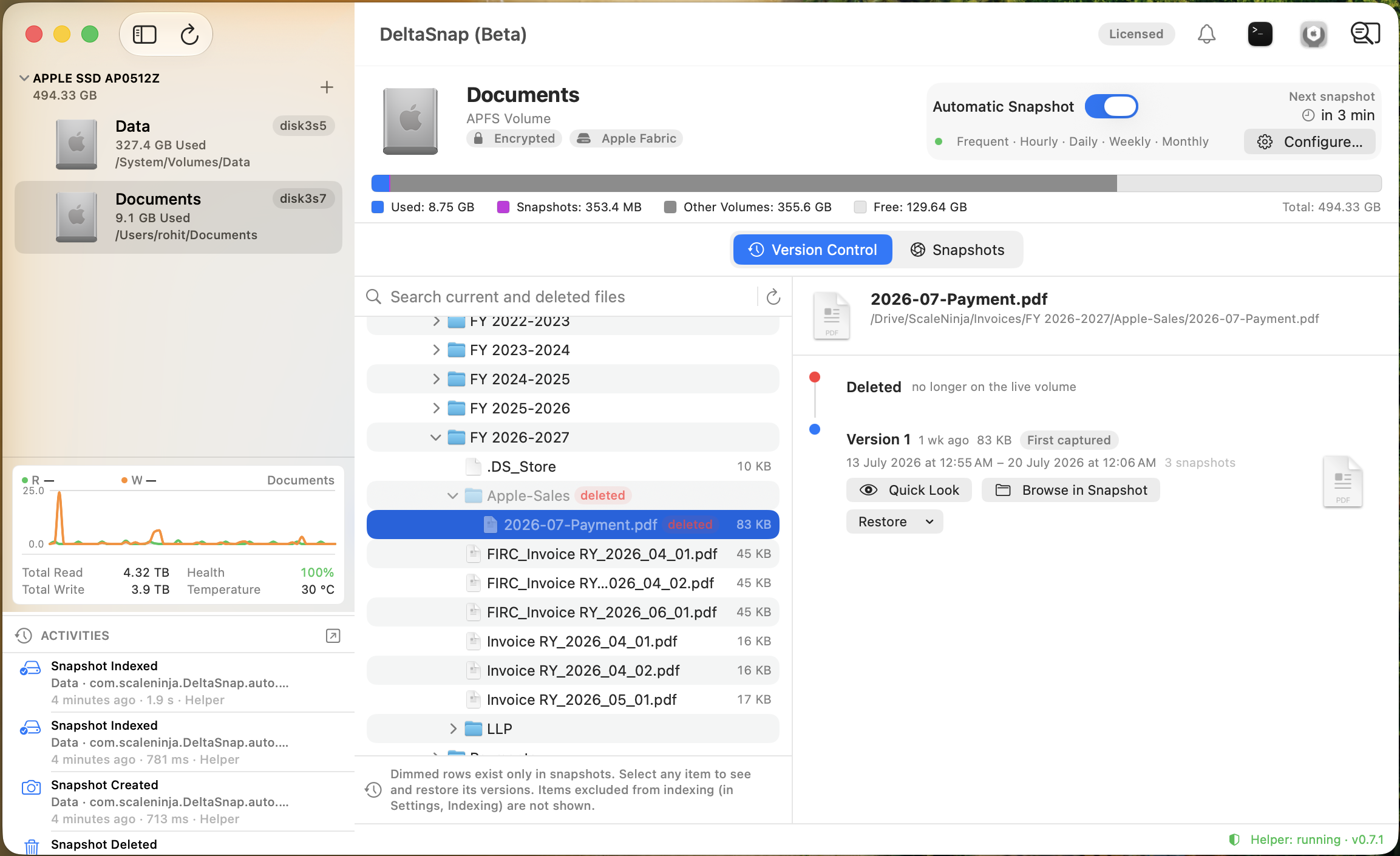
The browser refreshes from snapshot history, not continuously from every live filesystem event. Use Refresh or take a snapshot when a newly created or deleted item has not appeared yet.
Understand the timeline
The current state appears first. Each historical card represents a distinct captured state and reports its date range, size, and how many retained snapshots can still serve it. Metadata changes and moves can form new versions even when file contents look unchanged.
A version remains recoverable only while at least one retained snapshot contains it. Pruning that last serving snapshot removes the corresponding recoverable history.
Preview and compare
For a captured version you can:
- use Quick Look without restoring it;
- reveal the read-only historical item in Finder;
- compare it with the previous version or current item;
- drag it to a writable destination; or
- open the Restore menu.
Folder comparisons list added, removed, modified, replaced, and moved descendants. File comparisons show the two versions side by side with Quick Look.
Restore safely
Restore a Copy is the safest default. DeltaSnap clones or copies the historical item next to the original with its version date in the name, leaving the live item untouched.
Replace Original… replaces the live path atomically. The confirmation offers Take Safety Snapshot and Replace, which creates an expiring recovery point before the change, and a more destructive replacement without that snapshot.
Replacements are guarded against concurrent edits: DeltaSnap verifies the live item is unchanged since the restore was prepared and refuses the swap if anything wrote to it meanwhile, so a long copy can never silently overwrite work that happened during it. Replacing a folder always captures one final safety snapshot at the moment of the swap, regardless of the checkbox: a whole-tree replacement never runs without a recovery point.
Indexed-history limits
Locations excluded in Settings → Indexing do not have a Version Control timeline or historical name search. Hard links restore as independent files, and symlinks restore as symlinks. Version history is local metadata derived from retained snapshots; it is not an off-device copy.