
 DeltaSnap
  DriveSync
  Noject
  DeltaSync
 MacVisor creates macOS and ARM64 Linux VMs. It does not emulate x86 and does not run Windows.
The New VM form
⌘N opens it. Choose Linux or macOS at the top, then the name, the source, and CPU, memory, and disk size. A Linux VM gets a Nested Virtualization switch below the resources (on by default on an M3 or later Mac), then the storage location and an icon. More Options appears for macOS and holds automatic first-boot setup.
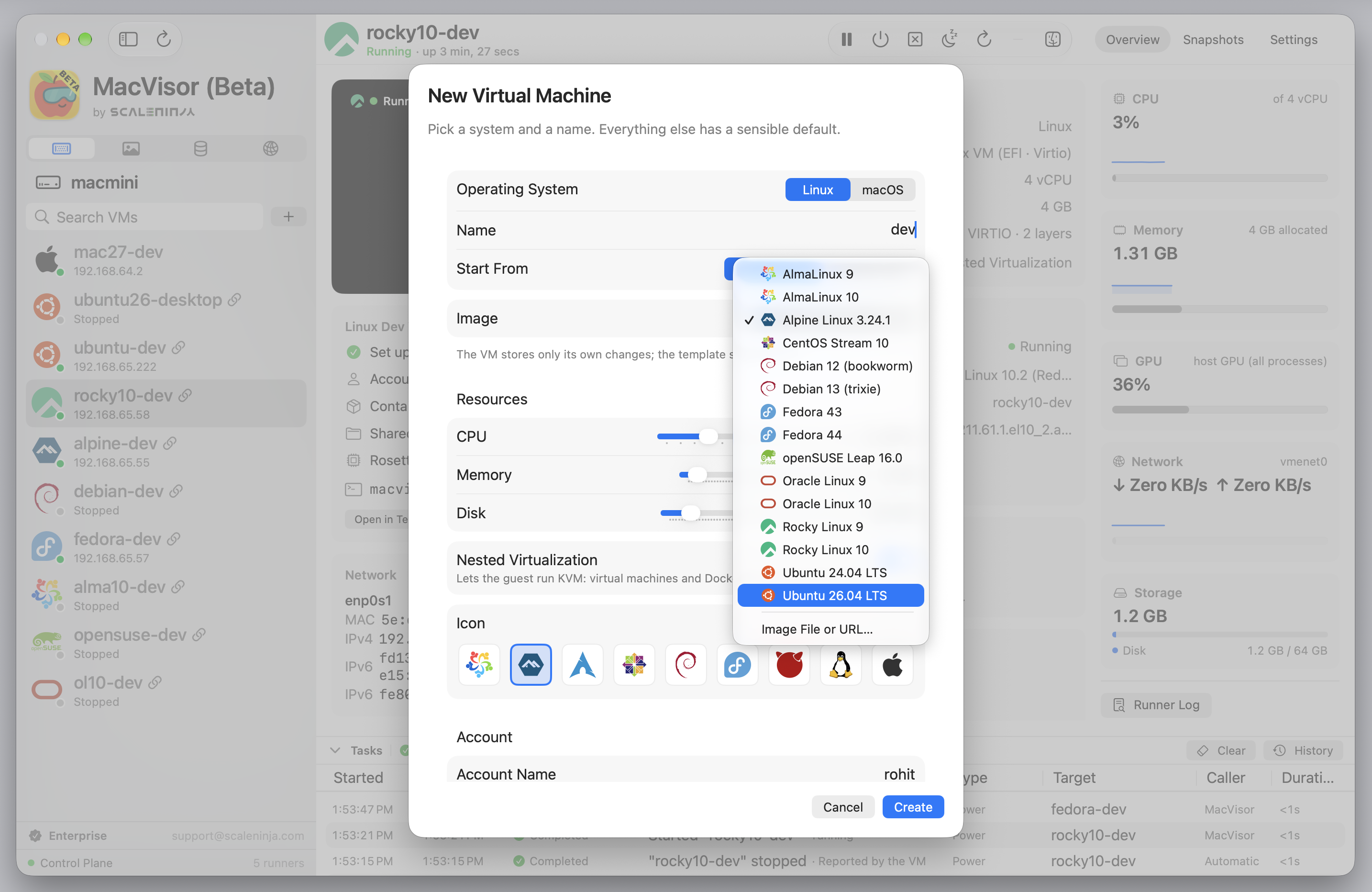
Linux sources: Cloud Image, Installer ISO, or Template (once you have one). macOS sources: a catalogue installer, a local .ipsw, or a template.
Linux from a cloud image
The normal way. Pick a distribution from the catalogue and click Create. MacVisor downloads the image once, verifies it, keeps it as an ASIF template, and makes the VM as a linked clone of it. On the first boot cloud-init creates your account with your SSH keys and installs the guest agent; a container runtime and shared folders come only when you choose them. What cloud-init sets up has the full list.
Defaults: 4 vCPUs, 4 GiB of memory, a 64 GiB disk (never smaller than the image), nested virtualization on an M3 or later Mac, a memory balloon, no container runtime, and no shared folders. The runtime menu leaves out what an image cannot run: Podman and k3s on Alpine, k3s on Oracle Linux, Docker on Oracle Linux 10 (Runtimes by distribution); mvz create refuses them and lists the runtimes the image offers. Your own #cloud-config or script goes in the form or in --user-data; it runs after MacVisor's.
The account cloud-init creates has no password, so you sign in with an SSH key. When MacVisor finds none in ~/.ssh or your SSH agents, the form offers Create SSH Key, which makes ~/.ssh/id_ed25519 with no passphrase, and mvz create asks whether to make it. Without a key of yours, the VM gets MacVisor's own key: mvz shell, exec, and the Overview's Open in Terminal sign in with it, plain ssh and editors don't. --no-ssh-keys authorises no key at all.
The first time, the form's Containers menu is set to None and Share my home folder (read-only) is off. After that the form remembers the runtime and home-folder choice you made last, for the next Linux VM. mvz create never remembers: add --runtime <name> and --home each time you want them. --project <dir>, or the form's project folder, shares a folder read-write.
mvz create ubuntu dev --runtime containerd --home
mvz create fedora-44 build --cpus 8 --memory 16 --runtime podman
mvz create debian dev2 --project ~/src/app --user-data cloud.yaml
mvz shell dev
For a distribution that is not in the catalogue, mvz images add <file>, or the + button next to the Templates search, turns a qcow2, raw, or .xz cloud image into a template.
Linux from an ISO
Choose Installer ISO and an ARM64 ISO, or create an empty VM and attach media later. The ISO appears as USB mass storage on the first boot; install to the virtual disk, then eject it (mvz set <vm> --iso none). Nothing is set up for you: create your account in the installer and install the guest tools from the attached volume (see Guest tools).
macOS
Choose macos-27, macos-26, macos-15, macos-14, macos-latest (the newest this Mac supports), or a local .ipsw. MacVisor downloads the installer from Apple once, checks its SHA-256, and runs Apple's restore; the install is a task and takes 20–30 minutes, and mvz wait <vm> --ssh follows it, then starts the VM. Defaults: 4 vCPUs, 8 GiB of memory, a 64 GiB disk. Below 4 vCPUs the guest is not responsive.
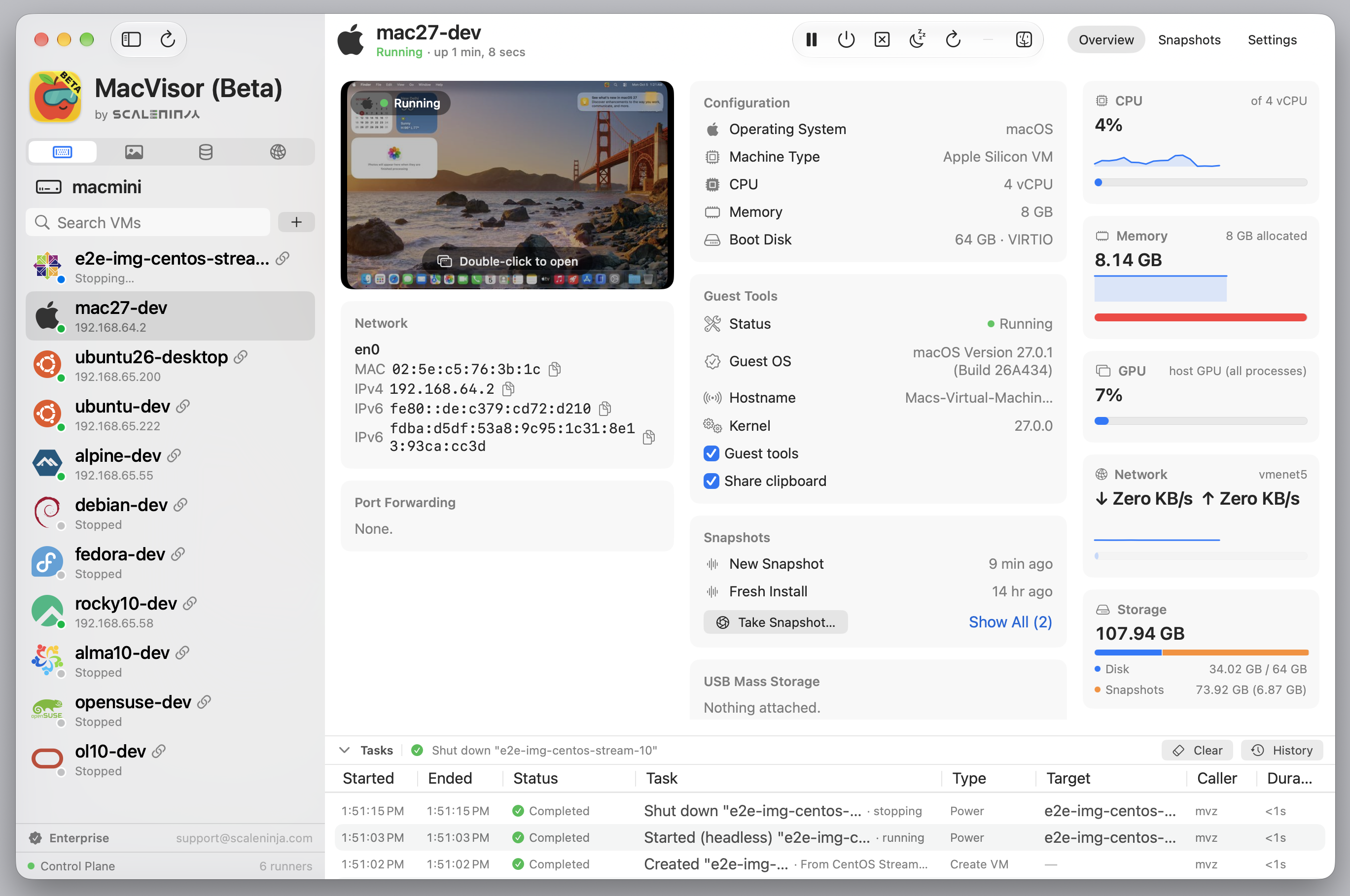
macOS 27 guests skip Setup Assistant. The first boot creates the account (mac with password macvisor by default; the form remembers the account name you used last, not the password, and --user with --password-file sets it from the CLI), signs it in, and turns on Remote Login. MacVisor then installs the guest agent over SSH and authorises your SSH keys, so mvz shell works without a password, and turns SSH password logins off: from then on SSH takes keys only. --no-setup keeps Setup Assistant; --no-autologin keeps the login window. See Signing in.
macOS 26 and earlier go through Setup Assistant by hand; afterwards install the agent from the mounted volume (see Guest tools).
mvz create macos-27 mac --ssh
mvz create macos-latest ci --user builder --ssh
mvz create ~/Downloads/UniversalMac_27.0_Restore.ipsw seqErase and install again
Erase and Install macOS…, in a stopped macOS VM's toolbar, erases the VM's disk and installs macOS fresh from an IPSW, for retrying a failed install. It does not upgrade: to update macOS, use Software Update inside the VM. The confirmation offers Take a Snapshot, Then Erase or Erase and Install. An attempt that fails before the installer starts writing the disk, for example with the Mac offline or a damaged installer, leaves the VM with the macOS it had, still able to start.
It is unavailable for a VM that shares its disk with linked clones; flatten its disk or make a full clone first. See Linked clones.
Disks are ASIF
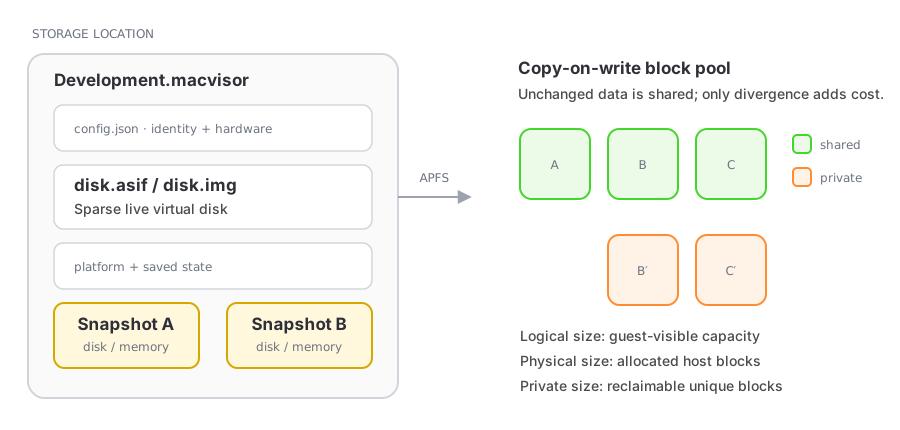
Every disk MacVisor creates uses ASIF, Apple's sparse format: it grows as data is written, returns freed space, and is the only format that can shrink or back a linked clone. There is no format picker.
Raw disks from other tools or older MacVisor builds still run and are labelled Raw (legacy). VM Settings → Storage offers Convert to ASIF… for a stopped VM (see Storage and sharing).
Templates
Convert to Template… on a stopped VM makes it a reusable base. Templates live in <location>/Templates, appear in the sidebar's Templates section beside cloud-image templates and macOS installers, show only Snapshots and Settings, and cannot run. Create VM Using This Template… copies one into a new VM with a fresh identity and MAC addresses.
mvz images                        # templates, cloud images and macOS installers
mvz create <template> <name>      # copy a template you converted from a VM
mvz template <vm> on              # promote a stopped VM to a template
mvz template <vm> off             # make it a runnable VM again
To share a base without copying its disk, use a linked clone, which is what a cloud-image VM already is.
Networks that don't exist on this Mac
A VM (created, cloned, imported, or made from a template) that names a custom network or bridged interface this Mac doesn't have joins the Default MacVisor Network, and the service log says so. Point it at the right network in VM Settings → Network or with mvz set <vm> --network.