
 DeltaSnap
  DriveSync
  Noject
  DeltaSync
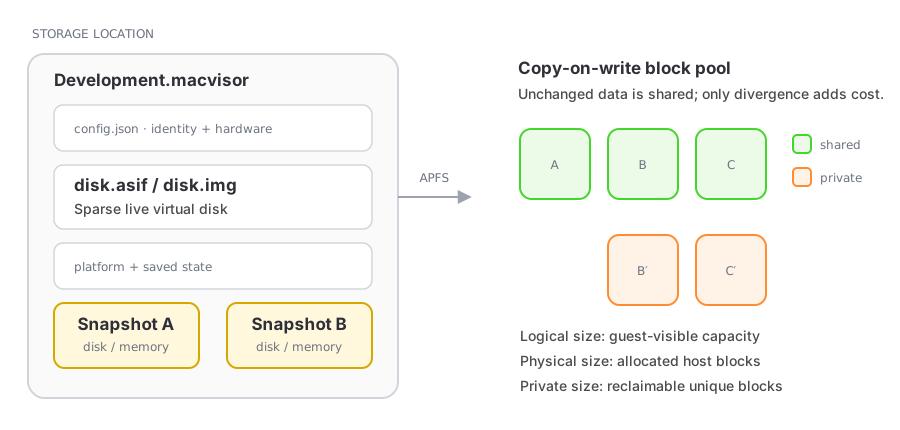
 A snapshot captures a VM's disks and platform state inside its .macvisor package. On APFS the disk files are cloned copy-on-write, so a new snapshot shares unchanged blocks with the live VM.
Disk-only snapshots
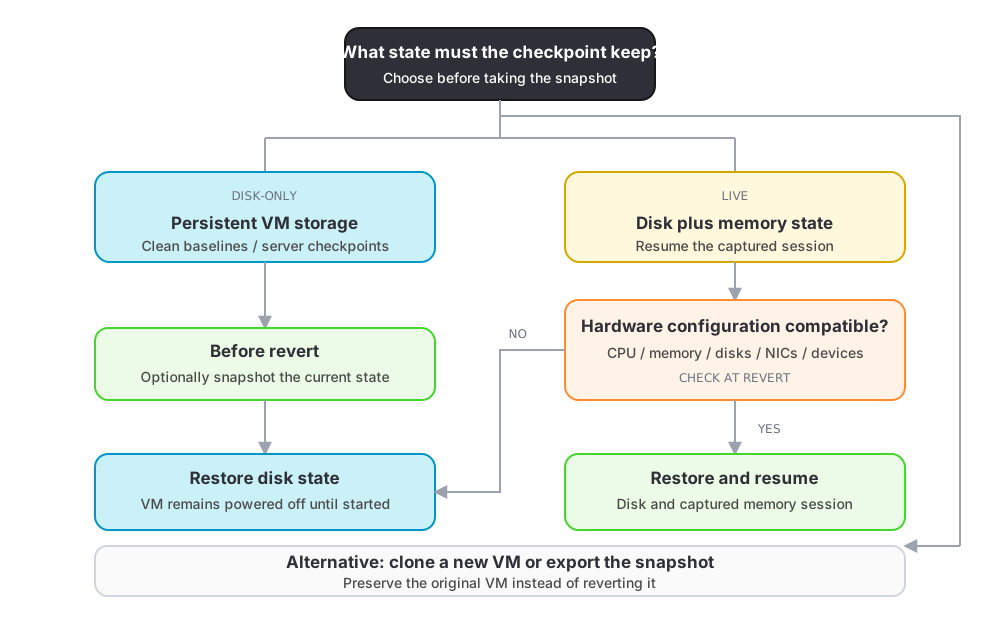
Record the disks. Reverting powers off a running VM and restores them. Good for clean-install baselines and server checkpoints.
Live snapshots
Record the disks and memory. Reverting puts back the snapshot's disks and settings, and can resume the captured session. Saved memory needs the virtual hardware it was saved with, so CPU, memory, disk, NIC, display, audio, or other device changes made since go back to the snapshot's too; the revert sheet says so and still offers to resume. If the session can't be restored anyway, the VM boots from the snapshot's disk.
A live snapshot is taken of a running or paused VM; one that is starting, stopping, or suspending is refused until it settles. While the snapshot is being saved, Pause, Shut Down, Restart, and Suspend are unavailable, in the VM window, the app, and mvz. Power Off still works.
Revert safely
Reverting replaces the current disks and, when compatible, memory. Changes made since are lost; the revert sheet can take a safety snapshot first.
Additional disks created after the snapshot go to the Trash, so the VM comes back with exactly the disks it had. The revert sheet names those disks, with their sizes; disks the snapshot already had are kept and not listed. A revert interrupted by a crash or power loss is put right when the background service next scans the library: undone if it hadn't yet switched the VM over to the snapshot's files, finished if it had. Either way the VM has one consistent set of disks and configuration.
A VM other VMs were linked-cloned from cannot be reverted while those clones exist; MacVisor names them. A snapshot taken while the VM had linked clones reads through the shared base, so the VM keeps its layered disk while such a snapshot exists, even after the last clone is gone. If that base has become writable again, the snapshot can't bring it back: MacVisor refuses the revert and says to delete the snapshot.
When a saved session won't restore
Like a suspended VM, a live snapshot depends on Virtualization accepting the saved session. macOS restores one only while you are logged in at the Mac with the screen unlocked, and not after a macOS update. On macOS 27, a VM whose disk caching is Cached has sometimes failed to restore one; choose Automatic in VM Settings → Storage if you rely on live snapshots. MacVisor offers Try Again or Start from Disk…, which boots from the snapshot's disks and discards only the session. mvz snapshots revert <vm> <id> --resume falls back to the snapshot's disk and says so; revert with the Mac unlocked to keep the session. See Run and control VMs.
Clone and export
A snapshot can become a new VM, with a new identity, or be exported to a folder. A clone of a live snapshot starts from the snapshot's disk, as after a power cut; the running session stays with the original VM. An exported snapshot leaves out the macOS account password that automatic setup keeps.
An imported VM keeps its snapshots, made its own: reverting one never brings back the original VM's id, MAC addresses, or machine identifier. Live snapshots lose their memory on import, because saved memory resumes only as the machine that saved it; reverting to one restores its disk. The import lists the snapshots affected.
Neither works for a VM with a layered boot disk (a linked clone, a VM forked into one, or a cloud-image VM, which reads through its template), because a snapshot of a layered disk holds only that VM's own layer. Revert and clone the VM instead, or mvz flatten <vm> first. See Linked clones.
From the command line
mvz snapshots list <vm>
mvz snapshots take <vm> --name "Before update" --notes "Known-good state"
mvz snapshots take <vm> --disk-only --name "Clean install"
mvz snapshots revert <vm> <snapshot-id> --resume
mvz snapshots export <vm> <snapshot-id> <folder>
mvz snapshots delete <vm> <snapshot-id>
mvz clone <vm> <name> --snapshot <snapshot-id>
A running VM's snapshot includes memory unless --disk-only. Name a snapshot by its id, the first 4 or more characters of it, or its exact name; one that matches more than one snapshot is refused, with the matches listed.
Snapshot storage
Logical size is what the guest sees. Physical size is the blocks on disk. Private size is what deleting the snapshot would actually free, after APFS sharing. Private usage grows as the live VM and its snapshots diverge; delete checkpoints you no longer need.