
 DeltaSnap
  DriveSync
  Noject
  DeltaSync
 mvz is MacVisor's command-line tool. It talks to the same background service as the app, so both see one library and one set of running VMs. Everything the app does, a script can do.
Getting the CLI
The network helper links both names into /usr/local/bin at first-run setup and repoints them when the app moves or updates:
/usr/local/bin/mvz      → /Applications/MacVisor.app/Contents/Helpers/macvisor
/usr/local/bin/macvisor → /Applications/MacVisor.app/Contents/Helpers/macvisor
If you declined the helper, run /Applications/MacVisor.app/Contents/Helpers/macvisor, or link it later from Settings → Setup → Link Command Line Tool.
mvz help lists every command; mvz help <command> shows its options and examples. mvz version prints the MacVisor version.
Naming things
<vm> is a VM's name, its id, or the first 4 or more characters of the id. Commands that only look, such as show and ip, also take part of a name; commands that change a VM, such as start, set, and rm, need the whole name or an id. A selector that matches more than one VM is refused, and the matches are listed. A snapshot is named by its id, the first 4 or more characters of it, or its exact name. Names are unique on a Mac: create refuses a name that exists, set <vm> --name renames.
--json for scripts
Most commands take --json:
mvz list --json
mvz show dev --json
mvz ip dev --wait            # prints just the IPv4 address
Commands that change something print their result as JSON with --json too, among them rm, images add and images rm, and add and remove under ports, disks, and nics.
Exit status
| Code | Meaning |
|---|---|
| 0 | Success |
| 1 | Failure, including a VM that is busy or still installing macOS, and a service that restarted mid-request |
| 2 | Usage error, including an option the command doesn't take |
| 3 | Not found: no such VM, template, snapshot, or network |
| 4 | The service is unreachable: not running, or not registered |
| 5 | Timed out |
Status 4 means nothing answered at all: check mvz service status, or open the app, which starts the service and repairs a broken LaunchAgent; see Troubleshooting. Status 5 comes from wait, ip --wait, from shell and exec when SSH has not answered within two minutes (ten for a macOS guest), and from any command the service doesn't answer in time. A busy service may still be doing what you asked, so check mvz tasks before trying again; the same goes for status 1 with "MacVisorService stopped while handling the request".
Every command refuses an option it doesn't take, so a typo such as start dev --headles fails with status 2 instead of opening a window.
Without a license on this Mac, create, clone, import, and images pull fail with a message saying so; everything else works and existing VMs are unaffected. The background service keeps the license and makes the weekly check with Polar whether or not the app is open, so a Mac you drive only with mvz can be activated and stays licensed:
mvz license                      # status: edition, key, last check
mvz license activate [<key>|-]   # asks in a terminal; - reads standard input
mvz license refresh              # check with Polar now
mvz license deactivate [--yes]   # release this Mac so the key can move
Every form takes --json. See Activate your license.
Shell completion
mvz completion <zsh|bash|fish>Add eval "$(mvz completion zsh)" to ~/.zshrc, eval "$(mvz completion bash)" to ~/.bashrc, or mvz completion fish | source to ~/.config/fish/config.fish. The scripts complete both mvz and macvisor.
Creating VMs
From a Linux cloud image
mvz create <image> <name> [options]<image> is a catalogue entry (ubuntu, debian-13, fedora…; mvz images lists them), a cloud-image template, a disk image file (qcow2, raw, or .xz), or an https URL. The image becomes a template on first use and the VM is a linked clone of it, set up by cloud-init on first boot. Cloud images lists the catalogue and what cloud-init sets up.
| Option | Effect |
|---|---|
--cpus <n> | Virtual CPUs (default 4) |
--memory <GiB> | Memory (default 4) |
--disk <GiB> | Disk size, never smaller than the image (default 64) |
--ssh-key <file> | Authorise this public key; repeatable (default: every key in ~/.ssh and your SSH agents) |
--no-ssh-keys | Authorise no keys, not even MacVisor's own |
--user-data <file> | Your own #cloud-config or script, applied after MacVisor's |
--runtime <name> | containerd, docker, podman, k3s, or none (default), where the image offers it; see Runtimes by distribution |
--home | Share your home folder read-only, at the same path (default: not shared) |
--project <dir> | Share this folder read-write, at the same path |
--rosetta, --no-rosetta | Run x86-64 Linux programs with Rosetta (default: when installed) |
--no-forward | Don't forward the guest's ports to this Mac automatically |
--network <id|nat> | A custom network's id, or nat (default: Default MacVisor Network) |
--no-agent | Don't install the MacVisor guest agent |
--nested, --no-nested | Nested virtualization in the guest (default: on, on an M3 or later Mac) |
--balloon, --no-balloon | A memory balloon device (default: on) |
--location <id> | Storage location (default: the default location; see locations) |
--json | Print the result as JSON |
mvz create ubuntu dev
mvz create ubuntu dev --runtime containerd --home
mvz create fedora-44 build --cpus 8 --memory 16 --runtime podman
mvz create debian dev2 --project ~/src/app --user-data cloud.yaml
mvz create ubuntu k8s --runtime k3s --memory 8
Nothing is installed or shared unless you ask: without --runtime the VM has no container runtime, and without --home or --project it has no shared folders. create doesn't remember your choices the way the New VM form does, so give the options every time. --no-home, from scripts written when the home folder was shared by default, is still accepted and does nothing.
create does not start the VM. mvz shell <vm> starts it on demand, or use start and wait.
The guest account has no password, so an SSH key is the only way in. When create finds no key in ~/.ssh or an SSH agent, it asks whether to make ~/.ssh/id_ed25519 (no passphrase), the key ssh uses by default. Without one (you said no, or create ran without a terminal or with --json), it authorises MacVisor's own key, ~/.macvisor/ssh/id_ed25519, which shell and exec use; plain ssh and editors don't. With --no-ssh-keys nothing can sign in unless your --user-data sets that up.
Every runtime works on every catalogue image except k3s on Oracle Linux, Docker Engine on Oracle Linux 10, and Podman and k3s on Alpine. create refuses those, and the message lists the runtimes the image offers.
From a macOS installer
mvz create <macos-installer|file.ipsw> <name> [--cpus <n>] [--memory <GiB>] [--disk <GiB>] [--user <name> [--ssh]]A catalogue installer (macos-27, macos-26, macos-15, macos-14, or macos-latest for the newest this Mac supports) is downloaded from Apple once and installed into a new VM: 8 GiB of memory by default, 20–30 minutes, visible in mvz tasks. A local .ipsw works too. Give macOS guests 4 or more CPUs. create returns once the install has started; mvz wait <vm> --ssh follows it, then starts the VM and waits for SSH (see Waiting for a VM).
macOS 27 guests skip Setup Assistant: the account is mac with password macvisor unless --user says otherwise. With --ssh, MacVisor then installs the agent and authorises your SSH keys over SSH, which needs the Local Network permission. Older guests go through Setup Assistant by hand. See Create VMs and templates.
| Option | Effect |
|---|---|
--user <name> | The account automatic setup creates (default mac, password macvisor) |
--password-file <file> | Read that account's password from a file instead of asking |
--no-setup | Don't set up an account; go through Setup Assistant |
--ssh | Turn on Remote Login, for shell and exec |
--no-autologin | Don't sign in automatically |
mvz create macos-26 tahoe
mvz create macos-latest ci --user builder --ssh
mvz create ~/Downloads/UniversalMac_27.0_Restore.ipsw seq
From a template
mvz create <template> <name>
mvz template <vm> [on|off]
A template you converted from a VM is copied as it is; the create options don't apply. template <vm> on turns a shut-down VM into a template, off makes it runnable again. on is refused for a suspended VM, whose disk was never written out: resume it and shut it down, or discard its saved state, first. See Create VMs and templates.
Images and installers
mvz images                                   # templates, Linux images and macOS installers (alias: templates)
mvz images pull <image> [--location <id>]    # fetch ahead of first use
mvz images add <file>                        # qcow2, raw, .xz, or .ipsw
mvz images rm <template|installer>pullfetches a catalogue entry, URL, or disk image as a template, or a macOS installer for later. For "latest" entries (Ubuntu, Debian, Rocky Linux, AlmaLinux) it fetches a newer vendor build if there is one;createjust uses the template it has.addturns a disk image you already have into a template; an.ipswjoins the installers after a check that it is a restore image.rmtrashes a template (refused while VMs are made from it) or, given an installer id such asmacos-26, the IPSW.- An installer you
pulloraddstays until yourmit. One thatcreatedownloaded goes to the Trash once a newer build of the same macOS version is here. - Interrupted or cancelled downloads, and ones that ran out of disk space, keep what they got; the next
pullorcreatecarries on.
mvz images pull debian-13
mvz images pull macos-26
mvz images add ~/Downloads/UniversalMac_26.6.2_25G83_Restore.ipsw
mvz images rm "Fedora 43"
mvz images rm macos-26
Where VMs live
mvz locations                                # list storage locations
mvz move <vm> <location> # a running VM is suspended, moved and resumedcreate, images pull, clone, and import take --location <id>. See Storage and sharing.
Lifecycle
mvz list                                     # alias: ls
mvz show <vm>                                # alias: info
mvz start <vm> [--headless] [--recovery] [--discard-state]
mvz stop <vm>                                # ask the guest to shut down
mvz poweroff <vm>                            # turn it off at once
mvz restart <vm>
mvz pause <vm>                               # freeze it in memory
mvz resume <vm> [--discard-state]            # a paused or suspended VM
mvz suspend <vm>                             # save its state to disk and stop
mvz discard-state <vm>                       # drop a suspended VM's saved state
mvz open <vm>                                # show a running VM's window
mvz autostart <vm> [on|off]                  # start it when you log in
mvz rm <vm>                                  # move a VM or template to the Trash (alias: delete)
start --headlessopens no window;--recoverystarts a macOS VM in recoveryOS.--recoveryis refused for a suspended VM: resume it and shut it down, or discard the saved session, first.- A suspended VM resumes its session. macOS allows that only while you are logged in at the Mac with the screen unlocked; over SSH with the screen locked,
startandresumesay so and keep the saved session, so unlock the Mac (or use Screen Sharing) and resume again. If a resume fails for another reason,showsays why and--discard-stateboots from the disk. See Run and control VMs. autostart onhas the background service start the VM at each login, whether or not the app opens. Whether it then boots fresh or resumes depends on what VMs do at logout:mvz service at-logout, under Housekeeping.rmpowers a running VM off first and is refused while other VMs read its disk; delete linked clones before their source.
Waiting for a VM
mvz wait <vm> [--ssh] [--timeout <seconds>]
mvz ip <vm> [--wait]waitreturns once the VM runs, its agent answers, and, for a cloud-image VM, cloud-init has finished.--sshreturns as soon as SSH answers, which can be before cloud-init is done; gate onexec --waitif you need that.waitdoes not start the VM; it exits 5 after--timeout(default 600 s).- A VM that is installing macOS is the exception:
waitfollows the install, starts the VM without a window once it is done, and then waits as usual. It exits 1 if the install fails. A--timeoutyou give covers the install too; without one,waitallows 600 seconds from the end of the install. ipshows a VM's addresses.--waitwaits up to 10 minutes for an IPv4 address and prints only it; a VM that doesn't exist (status 3) or a service that can't be reached (status 4) fails at once.
Console, screenshot and NVRAM
mvz console <vm>                             # serial console; Control-] detaches
mvz screenshot <vm> <file.jpg>
mvz nvram <vm> [set <name> <value> | rm <name>]consoleneeds Serial Console on in VM Settings → Advanced.screenshotneeds the VM's window to have been shown since it started (open).nvramreads or changes a shut-down macOS VM's NVRAM variables (mvz nvram tahoe set boot-args -v). A wrong value can keep the guest from booting. macOS 27 currently refuses the private interface this uses, and MacVisor says so.
Working inside a VM
shell and exec
mvz shell <vm> [--workdir <dir>] [--wait] [--user <name>] [<command>…]     # alias: ssh
mvz exec <vm> [--workdir <dir>] [--wait] [--user <name>] [--] <command>…
shell runs ssh with your keys and the VM's pinned host key, through the agent's virtual socket (or the VM's IP without the agent). It starts the VM if needed and connects as soon as SSH answers, even while cloud-init is still working; --wait waits for cloud-init first. The shell opens in the guest folder matching your current one when that folder is shared. exec is shell with a command; put -- before a command with options of its own.
| Option | Effect |
|---|---|
--workdir <dir> | Start in, or run in, this guest folder |
--wait | Wait for cloud-init to finish first |
--no-wait | Don't wait (the default) |
--user <name> | Sign in, or run, as this guest account |
A macOS guest needs Remote Login on (--ssh at creation, or the guest's Sharing settings). The first shell asks for the account's password once and authorises your key; a macOS 27 guest with automatic setup has already done that. While macOS is still installing, shell says so and exits with status 1; mvz wait <vm> --ssh waits for the install and the first boot.
mvz shell dev
mvz shell dev uptime
mvz exec dev -- nerdctl run --rm alpine uname -m
mvz exec dev --workdir /tmp -- ls -la
From Terminal, shell and exec are not affected by the Local Network permission the app and VM runner need; Terminal carries its own.
Reaching VMs by name
mvz ssh-config [--install | --uninstall | --print]MacVisor keeps ~/.macvisor/ssh/config current for every cloud-image and macOS VM, host keys pinned. --install adds one Include line to ~/.ssh/config, after which ssh dev.mvz (or dev.macvisor), scp, and VS Code Remote-SSH work. A ~/.ssh/config that is a symlink, as in a dotfiles repo, stays one: --install and --uninstall edit the file it points to. A config MacVisor can't read and write, or that isn't UTF-8 text, is left as it is, and the command says which line to add or remove yourself. <vm>.mvz and <vm>.macvisor names resolve on the Mac without this; see Networking.
Files
mvz send <vm> <path>…Copies files or folders into a VM through the agent; they land on the guest's desktop, or in the home folder. Long transfers are tasks. For ongoing access, use a shared folder (--project).
Port forwards
mvz ports list <vm>
mvz ports add <vm> --host-port <port> --guest-port <port> [--udp] [--host <address>] [--name <name>]
mvz ports remove <vm> <forward-id|host-port>
Forwards listen on 127.0.0.1 unless --host says otherwise, go through the agent, and apply immediately. Cloud-image VMs also forward the guest's ports automatically. See Networking.
mvz ports add dev --host-port 8080 --guest-port 80 --name web
mvz ports add dev --host-port 5353 --guest-port 53 --udp
Docker, Podman and Kubernetes
mvz docker <vm> [--use | --remove]
mvz kubeconfig <vm> [--save]dockerforwards a running VM's Docker API (Docker Engine or Podman's) to a socket on this Mac through the agent and creates a docker context for it;createdoes this for Docker and Podman VMs.--usemakes it the current context,--removedeletes it.kubeconfigprints a k3s VM's kubeconfig, or--savewrites it to~/.kube/macvisor-<name>.yaml. The API server is forwarded to127.0.0.1:6443.
mvz create ubuntu web --runtime docker && docker --context macvisor-web ps
mvz docker web --use
mvz create ubuntu k8s --runtime k3s --memory 8
mvz kubeconfig k8s --save && KUBECONFIG=~/.kube/macvisor-k8s.yaml kubectl get nodes
Templates, clones, snapshots and disks
Clone
mvz clone <vm> <name> [--linked | --snapshot <id>] [--location <id>]A full copy is near-instant on the same APFS volume. --linked shares the source's disk and stores only the clone's changes (source stopped). --snapshot <id> copies the VM as it was then; a clone of a live snapshot starts from the snapshot's disk, as after a power cut, and the running session stays with the original VM. See Linked clones.
A copy gives up what would clash with the VM it came from: start at login is off, port forwards on a host port another VM uses are turned off, disk images another VM writes to are attached read-only, and USB devices another VM captures are dropped. Without --snapshot, clone lists what it changed.
mvz clone dev dev2
mvz clone dev scratch --linked
mvz clone dev before-upgrade --snapshot 1a2b3c4d
Flatten and trim
mvz flatten <vm>                             # make a layered disk one self-contained file
mvz trim <vm>                                # return a running Linux VM's unused disk space to the Mac
flatten copies the blocks a linked clone reads from its base into its own disk. The VM must be stopped with no snapshots; this is also what makes a linked clone exportable.
Snapshots
mvz snapshots list <vm>
mvz snapshots take <vm> [--name <name>] [--notes <text>] [--disk-only]
mvz snapshots revert <vm> <snapshot-id> [--resume]
mvz snapshots delete <vm> <snapshot-id>
mvz snapshots export <vm> <snapshot-id> <folder>
A running VM's snapshot includes its memory unless --disk-only. <snapshot-id> is the id, the first 4 or more characters of it, or the snapshot's exact name. revert --resume continues the saved session, falling back to a boot from the snapshot's disk if it can't. See Snapshots and recovery.
mvz snapshots take dev --name "Before update" --notes "Known-good state"
mvz snapshots revert dev 1a2b3c4d --resume
Disks and settings
mvz set <vm> [--name <name>] [--cpus <n>] [--memory <GiB>] [--disk <GiB>] [--network <network>] [--iso <file|none>]
            [--nested on|off] [--balloon on|off] [--balloon-target <GiB>] [--clipboard both|to-vm|from-vm|off] [--discard-state]
mvz disks list <vm>
mvz disks add <vm> --size <GiB>
mvz disks remove <vm> <disk-id>setwith no options shows the settings. CPU, memory, network,--nested, and--balloonapply at the next start.--diskgrows the boot disk of a stopped VM (a cloud-image Linux VM grows its filesystem at the next boot); it never shrinks one.--isoattaches a disc image,nonedetaches it.- A suspended VM resumes with the settings it was saved with. CPU, memory, network, nested virtualization, balloon and disc-image changes are saved and apply once the VM is shut down and started again. Only a bigger disk would meet the saved session at resume, so
setrefuses--disk: add--discard-stateto drop the session and make the change, or resume the VM and shut it down first. With--discard-state, the other changes apply at the next start too. --balloon-targetchanges a running VM's memory target at once, in GiB up to 1024. It stays between a floor (a quarter of the VM's memory, at least 1 GiB, or 4 GiB for macOS) and the VM's memory; the output gives the target applied.--clipboardsets which way the clipboard is shared:both(the default),to-vm(Mac to VM only),from-vm(VM to Mac only), oroff;set <vm>shows the current one. It applies at once, even to a running VM, except on a Linux guest using spice-vdagent, where a change to or frombothapplies at the next start. See Guest tools.disks addanddisks removeneed the VM shut down, with no suspended session. A new disk is blank.
mvz set dev
mvz set dev --cpus 8 --memory 16
mvz set dev --clipboard to-vm
mvz set dev --disk 128
mvz set dev --disk 128 --discard-state       # a suspended VM: drop its saved session
mvz set <vm> --iso none
Export, import and move
mvz export <vm> <folder>
mvz import <bundle> [--location <id>] [--move]
mvz move <vm> <location>
export copies a VM's bundle to a folder (a linked clone must be flattened first). import adds a .macvisor bundle with a new identity (id, MAC addresses, machine identifier); --move moves instead of copying. move puts a VM in another storage location, suspending and resuming it if it is running; that warm move is refused while the Mac's screen is locked, because the resume needs it unlocked.
A bundle from elsewhere loses the settings that reach outside the VM, and import lists what it changed:
- shared folders and external disk images, which name another Mac's paths, are removed;
- USB devices captured automatically are cleared, and start at login is turned off;
- port forwards and remote access listen on
127.0.0.1only; - an invalid guest account name is fixed;
- a saved (suspended) session is discarded, because the imported VM has a new identity and starts from its disk;
- its snapshots become the imported VM's own, and live snapshots lose their memory, keeping their disks.
A bundle whose configuration names disk files outside the bundle is refused, and so is a linked clone whose shared base disk has changed since it was made.
Networking
mvz set <vm> --network nat|bridged|bridged:<interface>|<network>
mvz nics list <vm>
mvz nics add <vm>
mvz nics remove <vm> <nic-id>
--network applies at the next start. Added adapters use NAT; change one in VM Settings → Network. Cloud-image VMs get DHCP on every adapter.
Custom networks
mvz networks
mvz networks create <name> [--host-only] [--subnet <a.b.c.0/24>]
mvz networks rm <network>
mvz networks reserve <network> <vm> <ip>
mvz networks firewall <network> [on|off] [--inbound allow|deny] [--outbound allow|deny] [--allow <rule>]… [--deny <rule>]… [--clear]--subnetis for host-only networks only, and a fixed subnet gets no DHCP from macOS; shared networks cannot pin one on macOS 27. See Addressing.reservegives a VM a fixed DHCP address; the guest must identify by MAC, which cloud-image VMs do. See DHCP reservations.firewallrules arein|out[:tcp|udp|icmp|any[:<ports>[:<cidr>]]], each part optional from the right. Rules keep the order you type them,--allowand--denymixed; first match wins, then the direction's default. New rules go after the existing ones;--cleardrops those first.offturns the firewall off and keeps the rules. The background service checks and applies the change before the command returns, whether or not the app is open: a rule that can't be enforced as written is refused, and the output lists the numbered rules and says whether they are enforced, and if not, why.mvz networksshows each firewall ason,pending(saved but not in force), oroff. See Network firewall.rmis refused while a VM uses the network.
mvz networks create lab
mvz networks create isolated --host-only --subnet 192.168.20.0/24
mvz networks reserve lab dev 192.168.105.50
mvz networks firewall lab on --outbound deny --allow out:tcp:443 --allow out:udp:53
mvz networks firewall lab --clear --deny out:any::10.0.0.0/8 --allow out:tcp:443
mvz networks firewall lab off
In the --clear example the deny comes first, so TCP 443 to 10.x addresses is blocked while 443 anywhere else is allowed.
VLAN interfaces, network-level (vmnet NAT) port forwards, and the per-network DHCP/DNS/NAT/RA switches are set in the app.
Housekeeping
mvz tasks [list] [<vm>]
mvz tasks status <task-id>
mvz tasks cancel <task-id>
mvz service [status]
mvz service logs [--tail <lines>]
mvz service restart
mvz service stop
mvz service install-agent | uninstall-agent | agent-status
mvz service at-logout [shutdown|suspend]     # what running VMs do when the Mac logs out
mvz locations
mvz completion <zsh|bash|fish>
mvz version
mvz help [<command>]- Tasks are the long operations the app's task pane shows (downloads, macOS installs, exports, file transfers, flattening), with who started each one.
tasks cancelstops one: a cancelled download keeps what it got and stays stopped, even across a service restart, and a cancelled macOS install leaves the VM stopped, for Erase and Install macOS… in the app. service statusreports the PID, executable, build, LaunchAgent state, andpendingStorageRoots(locations macOS has not yet let the service read). After an update, if the service still runs an older build thanmvz, it says so: runmvz service restart.install-agent,uninstall-agent, andagent-statusmanage the service's own LaunchAgent, meaning the background service, not the guest agent.service restartandservice stoplet work in progress (a clone, an export, a download) finish first. If any is running, the command says so and the service restarts or stops by itself when it is done; thelaunchctl kickstart -kcommand it prints doesn't wait, and interrupts that work. Running VMs keep running either way.service at-logoutshows or sets what running VMs do when the Mac logs out, restarts, or shuts down, the same choice as Settings → General → Logout and Shutdown in the app, for every VM.shutdown, the default, asks each guest to shut down and powers it off if it hasn't within 30 seconds; VMs set to start at login boot fresh.suspendsaves each VM's memory to disk, and VMs set to start at login resume; after a macOS update a saved session can't be restored, and such a VM starts from its disk instead. The choice applies to VMs already running, unless an earlier MacVisor started them. See Run and control VMs.
mvz service at-logout                        # show the current choice
mvz service at-logout suspend
mvz service at-logout --json                 # result.atLogout is "shutdown" or "suspend"
Scripting and CI examples
Every command exits non-zero on failure (see exit status), so && chains and set -e work.
A throwaway VM that runs the tests
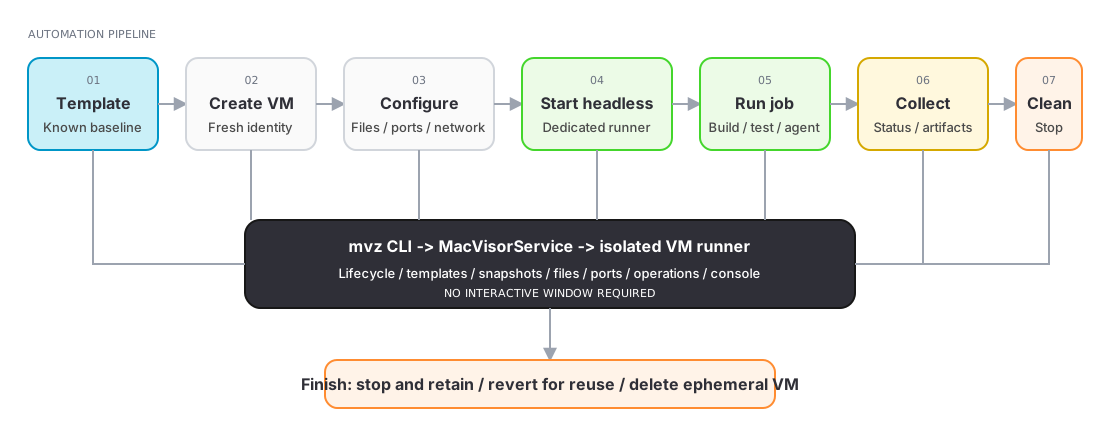
mvz create ubuntu ci-42 --project "$PWD"
mvz start ci-42 --headless && mvz wait ci-42 --ssh
mvz exec ci-42 --wait --workdir "$PWD" -- make test
mvz poweroff ci-42 && mvz rm ci-42
--project shares the working tree read-write at the same path, so build paths match on both sides; nothing else is shared and no container runtime is installed. exec runs as your own account. The VM is a linked clone of the Ubuntu template, so creating and deleting it costs no disk space and no download after the first time.
Snapshot, try something, roll back
mvz snapshots take dev --name baseline --disk-only
mvz exec dev -- sudo ./risky-upgrade.sh
mvz snapshots list dev --json
mvz snapshots revert dev <snapshot-id>      # powers off and restores the disk
mvz start dev --headless
To keep the VM running throughout, take the snapshot without --disk-only and revert --resume.
A headless macOS 27 VM with an account and SSH
mvz create macos-27 mac-ci --user builder --ssh --password-file ./builder-password --cpus 6 --memory 12
mvz wait mac-ci --ssh                       # the install (20–30 minutes), then the first boot until SSH answers
mvz exec mac-ci -- sw_vers
mvz autostart mac-ci on
wait follows the install, starts the VM without a window once macOS is installed, and returns when SSH answers; it exits 1 if the install fails. Without --timeout it allows 600 seconds from the end of the install; a --timeout you give covers the install too. The first boot creates the builder account and turns Remote Login on; MacVisor then installs its agent and authorises your SSH keys, so exec and shell need no password. autostart on brings the VM back at every login; see Always-on host.
Reading state from a script
mvz list --json
mvz show dev --json
mvz ip dev --wait                           # just the address, when it exists
mvz service status --json                   # exit 4 if the service is not answering
Still GUI-only
Converting a raw disk to ASIF, shrinking a disk, network-level (vmnet NAT) port forwards, VLAN interfaces, the per-network DHCP/DNS/NAT/RA switches, and creating an empty VM for an ISO install are done in the app. set <vm> --iso attaches installation media to an existing VM.