
 DeltaSnap
  DriveSync
  Noject
  DeltaSync
 The MacVisor Agent runs inside macOS and Linux guests. VMs run without it; mvz shell, the Docker socket, <vm>.mvz names, clipboard, and file transfer need it.
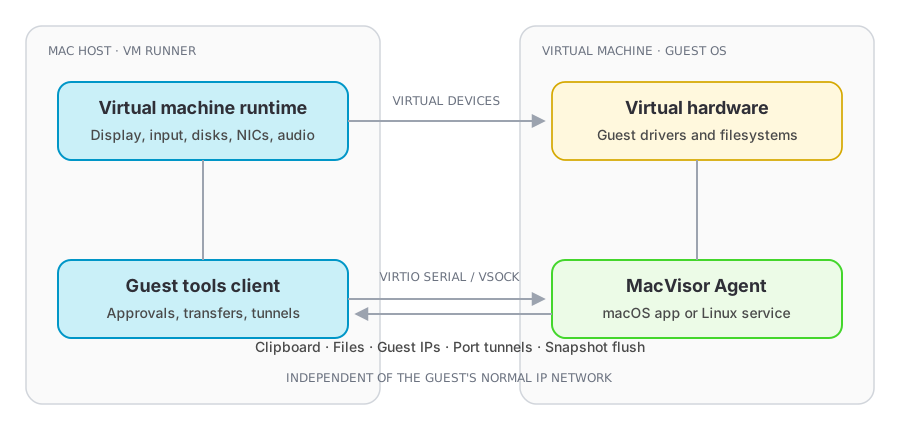
What the agent provides
- The tunnel behind
mvz shellandexec, and the per-VM Docker socket. - Clipboard synchronisation, both ways or one way (Clipboard).
- File transfer in both directions.
- Live OS and IP information, which is what
<vm>.mvzresolves from. - Port tunnels, including a cloud-image VM's automatic forwards.
- Filesystem preparation before a snapshot: the guest's pending writes are put on its disk first.
- A clean shutdown of a macOS guest on Stop, even with a user signed in.
- Clock resynchronisation after a pause, a resume, a live snapshot, or host wake. A Linux guest's agent sets the clock. A macOS guest won't let the agent set it, so MacVisor unplugs each of its network adapters for a moment and macOS's own time service corrects the clock.
- Notifications about guest-side requests and transfers.
The agent talks to its VM runner over a virtual socket, not the guest's IP network, so it works on a host-only network or with no network at all.
Installed for you
- Linux VMs from a cloud image get it from cloud-init on the first boot, unless created with
--no-agent.mvz wait <vm>returns when that is done. - macOS 27 guests with automatic setup and Remote Login get it from MacVisor after the first boot: it signs in once over SSH with the account's password, authorises your SSH keys, and copies MacVisor Agent from the attached volume into Applications. It then turns SSH password logins off with
/etc/ssh/sshd_config.d/010-macvisor.conf, so the guest takes keys only; delete that file in the guest to allow passwords again. If Remote Login was off, install by hand.
Anything else (Linux from an ISO, macOS 26 or earlier, a macOS 27 guest made with --no-setup) is a manual install.
Enable it
VM Settings → Sharing → Guest Tools has two switches: Enable Guest Tools (the host side of the channel) and Attach Guest Tools Image at Boot (mounts the MacVisor Agent volume at each start). The channel needs the Virtio Socket (vsock) device under Advanced, on by default.
Install in a macOS guest by hand
The MacVisor Agent volume opens its window when it is attached while you are logged in.
- Drag MacVisor Agent onto the Applications alias in that window.
- Open it from Applications.
The agent registers itself as a login item, starts listening, and appears in the menu bar and in System Settings → General → Login Items & Extensions. If macOS holds it for approval, turn it on there; the agent says so once. If it crashes, it starts again by itself; quitting it from its menu keeps it quit until the next login.
For mvz shell and exec, turn on Remote Login in the guest's System Settings → General → Sharing. The first shell asks for the account's password once and authorises your key.
Install in a Linux guest by hand
Mount the volume and run the installer once; it installs a systemd unit.
sudo /path/to/volume/MacVisorGuestLinux/install.shChecking the connection
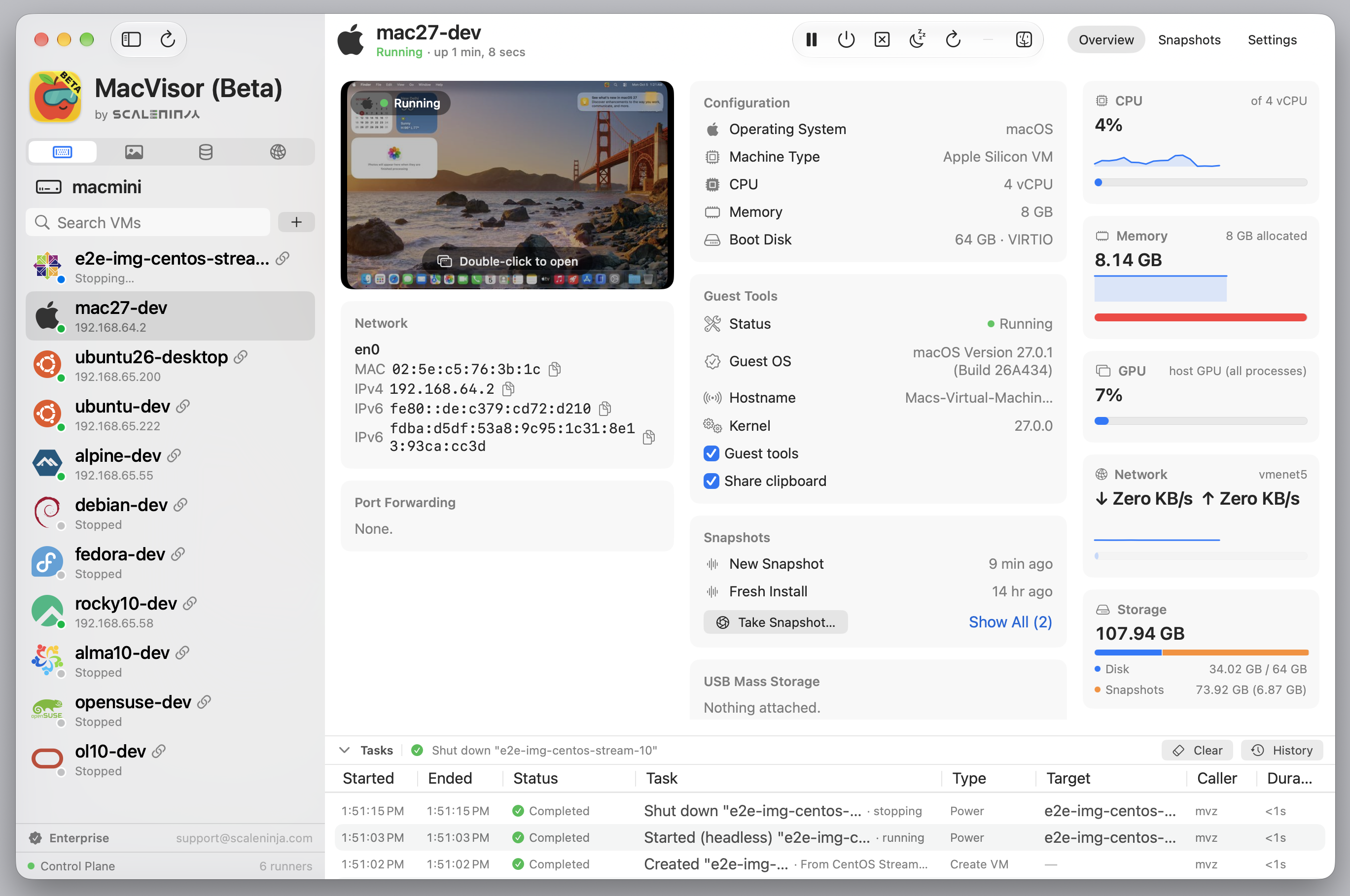
The VM's Overview tab shows whether guest tools are unavailable, connecting, connected, or outdated, and what to do next. mvz ip <vm> returning addresses confirms it from the CLI; mvz wait <vm> blocks until the agent answers.
Agent updates
Each time the agent connects, MacVisor compares its build with its own. An older agent shows as Outdated on the Overview tab and in the VM window's toolbar, and some integrations may not work until it is updated.
- macOS guests MacVisor set up (automatic setup with Remote Login, and Attach Guest Tools Image at Boot on) are updated over SSH with MacVisor's own key, once per VM start. Tasks records the update or why it failed.
- Linux guests update themselves shortly after boot from the MacVisor Agent volume, when it is attached and its agent is newer. A VM that was running when MacVisor updated gets the new volume at its next start.
- Anything else: install again as above. In macOS, drag MacVisor Agent from the volume into Applications and open it; in Linux, run the installer from the volume again.
The agent restarts during an update, so guest tools show as connecting for a moment.
Trust controls
Guest-initiated files, URLs, and automatic port forwards always need your approval on the host; the clipboard can be limited to one direction, or turned off, per VM. The agent is a bridge between environments you keep separate on purpose: accept only what you expect from software in that guest.
Clipboard
The clipboard is shared both ways by default: text and images you copy on the Mac reach the guest, and what you copy in the guest reaches the Mac. The Mac's clipboard is sent only while the VM's window is active. Each VM has a direction:
| Setting | Effect |
|---|---|
| Both Ways | The default. Copies go both ways |
| Mac to VM Only | Copies on the Mac reach the guest; the guest can't change the Mac's clipboard |
| VM to Mac Only | Copies in the guest reach the Mac; the guest never sees the Mac's clipboard |
| Off | Nothing is shared |
Set it in VM Settings → Sharing → Clipboard, with the Clipboard picker on the Overview tab, or with mvz set <vm> --clipboard both|to-vm|from-vm|off; mvz set <vm> shows it. A change applies at once to a running VM. The exception is a Linux guest using spice-vdagent: that clipboard only goes both ways and is set up at start, so a change to or from Both Ways applies at the next start.
File transfer
From the toolbar, by dropping files on the VM window, or from the CLI:
mvz send <vm> ~/Downloads/example.zip
mvz tasks list <vm>
Files land on the guest's desktop, or in the home folder. Every transfer, either way, is a task with a progress bar in the Tasks pane, and can be cancelled there. In the VM's window, the Files button in the toolbar shows the progress, and its list of transfers in flight (each with a progress bar and cancel button) opens while files move and closes once they're done; files the guest offers to send wait there too. An offer never brings the window forward or takes the keyboard from the guest: the Files button shows a count and the Dock icon a badge, and for a hidden or headless VM the Tasks pane notes the request. Offers nobody answers are declined after two minutes. For ongoing access use a shared folder instead: a cloud-image VM made with --home has your home folder read-only at the same path, and --project adds a read-write one.
Files from the guest go to your Downloads folder under the guest's name, or name 2, name 3, and so on when that is taken, as in Finder; nothing already there is replaced. A file appears only once it is complete and its checksum matches, so a failed or cancelled transfer leaves nothing behind. MacVisor refuses a file whose size differs from what the guest offered, or that would leave less than 512 MiB free on the Mac. Each file is quarantined under the VM's name ("MacVisor — dev"), so macOS checks it with Gatekeeper before it first opens, as it does a file from a browser.
In a Linux guest, files you send are created with the receiving user's own rights, so they belong to that user and land only where that user may write. A Desktop folder the user doesn't own is passed over for their home folder.