
 DeltaSnap
  DriveSync
  Noject
  DeltaSync
 MacVisor can run a Mac as a virtualization host: VMs start at login, run with no window open, and come back after a reboot. The bundles, networks, snapshots, and CLI are the same as in interactive use.
Turn a VM into a service
- In VM Settings → General → Startup, enable Start at Login.
- Optionally enable Headless Mode under Display, so the VM runs without a graphics device.
- Check that the background service is enabled on the library dashboard.
mvz autostart <vm> on
mvz start <vm> --headless
mvz wait <vm> --ssh          # until the agent answers, cloud-init is done, and SSH is up
The background service starts these VMs at each login, whether or not the MacVisor app opens. A VM started at login runs without a window; open it later without restarting it. To have the app open at login too, turn on Open MacVisor at login in Settings → Setup → Open at Login; first-run setup offers it. With the menu bar item on, the app opens hidden, and the menu bar item or the Dock icon brings its window back.
At logout and the next login
What VMs do when the Mac logs out, restarts, or shuts down, restarts from Terminal included, is one choice for the whole Mac, in Settings → General → Logout and Shutdown or with mvz service at-logout:
- Shut Down VMs, the default: each guest shuts down, and VMs set to start at login boot fresh at the next login.
- Suspend VMs: each VM's memory is saved to disk, and VMs set to start at login resume from their saved state rather than cold-booting. After a macOS update a saved session can't be restored, and the VM starts from its disk instead.
See Run and control VMs for how long each guest gets.
macOS restores a saved session only while you are logged in at the Mac with the screen unlocked; saving works while locked. If the Mac is locked when auto-start runs, a suspended VM waits and resumes once you unlock it. Over SSH, mvz resume on a locked Mac says so and keeps the saved session: unlock the Mac (or use Screen Sharing) and resume again. A warm mvz move of a running VM is refused while the Mac is locked.
When a saved session doesn't resume
Auto-start never throws a saved session away on a guess:
- A locked Mac, or a disk or shared folder on storage that isn't mounted yet, keeps the session. The VM resumes once the Mac is unlocked or the storage is there.
- A session that provably can't restore, because macOS was updated or it needs a custom network that was deleted since, goes to the Trash at once, as a folder named "VM saved session date", and the VM starts from its disk.
- Any other failure is retried once. If the restore fails again, the session goes to the Trash the same way, rather than being deleted, and the VM starts from its disk.
- If the retry failed before the saved session was even read, because the VM runner didn't launch for example, the session is kept: resume the VM once the cause is fixed, or use Start from Disk….
Every auto-start, and what became of it, is listed in the task pane and mvz tasks.
The chain that has to hold
Auto-start reaches the guest only if every link before it holds. The dashboard's Unattended Auto-Start panel appears as soon as any VM is flagged and reports each link live.
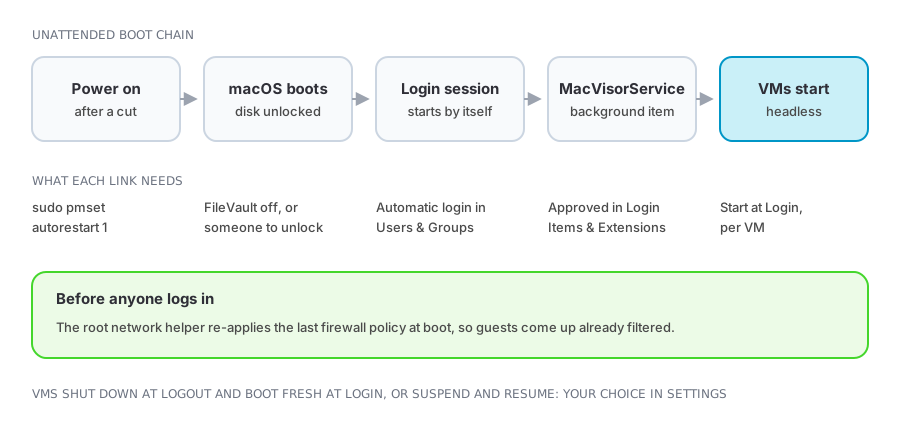
| Link | Where it is set | If it is missing |
|---|---|---|
| Power-failure restart | sudo pmset autorestart 1 | The Mac stays off after a power cut |
| FileVault | System Settings → Privacy & Security | Boot stops at the unlock screen until someone types the password |
| Automatic login | System Settings → Users & Groups | No login session, so nothing that depends on one runs |
| Background service | Login Items & Extensions, or the dashboard button | MacVisorService never starts, so no VM starts |
| Auto-start flag | VM Settings → Startup | That VM stays stopped |
Firewall policy is the one thing that does not wait for a login session: the root network helper re-applies the last policy at boot, so guests come up filtered. See Network firewall.
Managing a host you are not sitting at
mvzdoes everything the app does. See Using the CLI.- Licensing needs no app either: activate over SSH with
ssh -t host mvz license activate(or pipe the key intomvz license activate -), and the background service checks the license with Polar every week whether or not anyone opens MacVisor, as long as the automatic-login session above is running.mvz licenseshows where it stands. See Activate your license. - Menu bar shows every VM's state and actions without the main window (Settings → General).
- Names and forwards:
<vm>.mvzreaches a VM by name on the host; cloud-image VMs forward the ports they listen on; per-VM forwards give fixed endpoints such asssh -p 2222 localhost. - Custom networks give services stable addresses through DHCP reservations, within vmnet's limits on macOS 27, and network forwards that need no guest agent.
- Runner logs are per VM, so one workload's failure can be read on its own. The runner and install logs of a deleted VM are removed once they have been idle for 14 days, or 60 while a storage location is offline.
Capacity
The dashboard compares assigned vCPUs and memory with physical capacity, and provisioned disk with the volume.
- vCPUs are time-sliced; overcommitting them is fine until every guest is busy at once.
- Memory is not. Guest memory beyond physical RAM means host swapping under load.
- Thin-provisioned disks promise more than the volume has; watch free space, not logical size. See Storage and sharing.
Keeping it running
- Each VM runs in its own process, so a crash is scoped to that VM.
- The control plane can restart or be upgraded and then reconcile the runners that survived. See Architecture.
- Right after the Mac starts, the background service can take a minute to answer. The app says it is still starting and waits rather than restarting it; a service that stays silent for two minutes is restarted once.
- App updates do not interrupt running VMs.
- Snapshots are checkpoints, not backups. An unattended host needs its own backup.