
 DeltaSnap
  DriveSync
  Noject
  DeltaSync
 MacVisor has one window for the library and a separate window per VM display. Nothing in the interface owns a running VM; close any of it without stopping a guest.
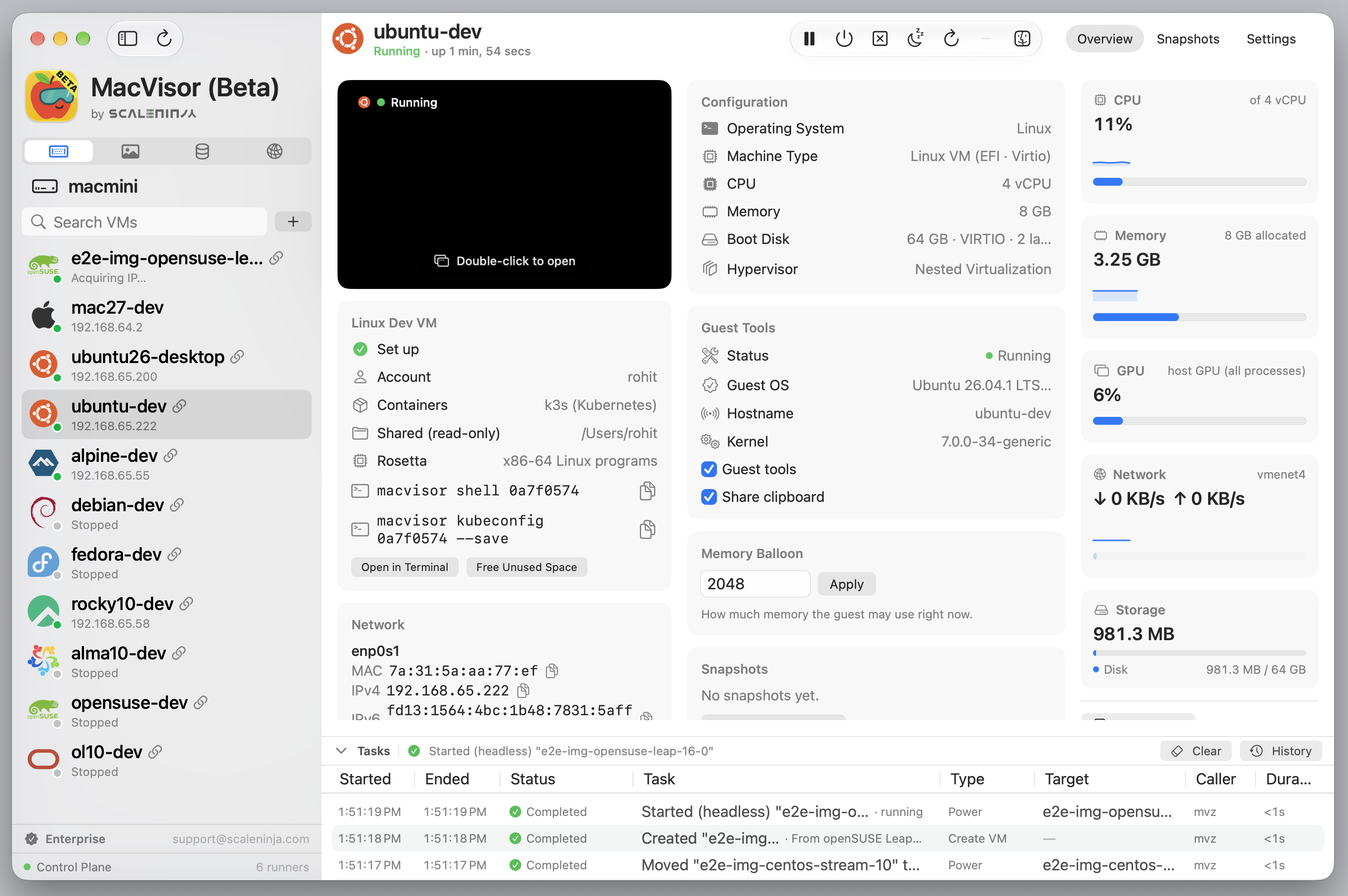
Sidebar
A segmented control switches between four sections, each with its own search:
| Section | Contents |
|---|---|
| Virtual Machines | Every VM, with state, resources, and lifecycle actions. Double-click a running VM to open its window |
| Templates | The catalogue of cloud images and macOS installers, what is downloaded, and VMs you converted to templates |
| Storage | Storage locations and what each holds |
| Networks | Host interfaces, VLAN interfaces, and custom networks |
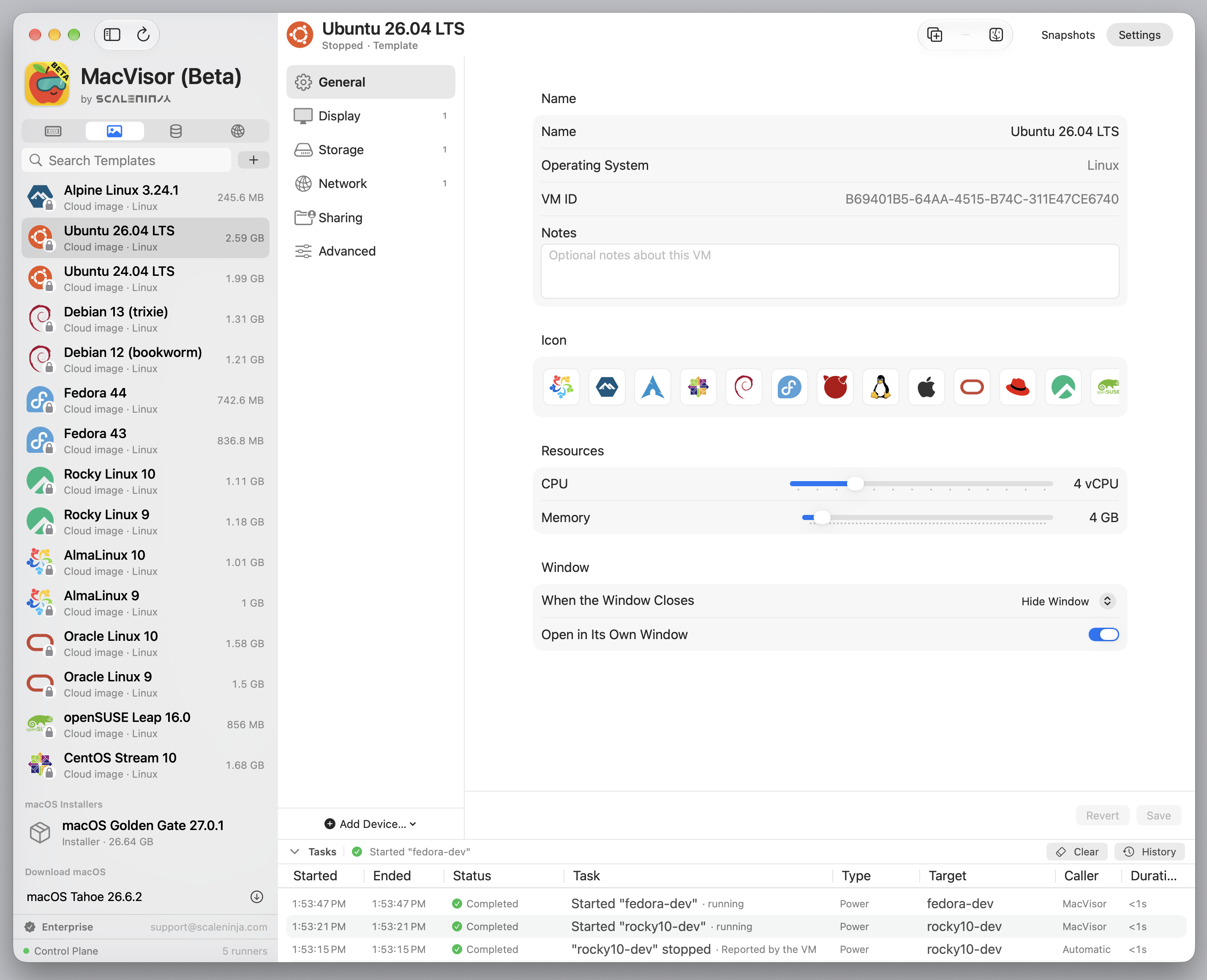
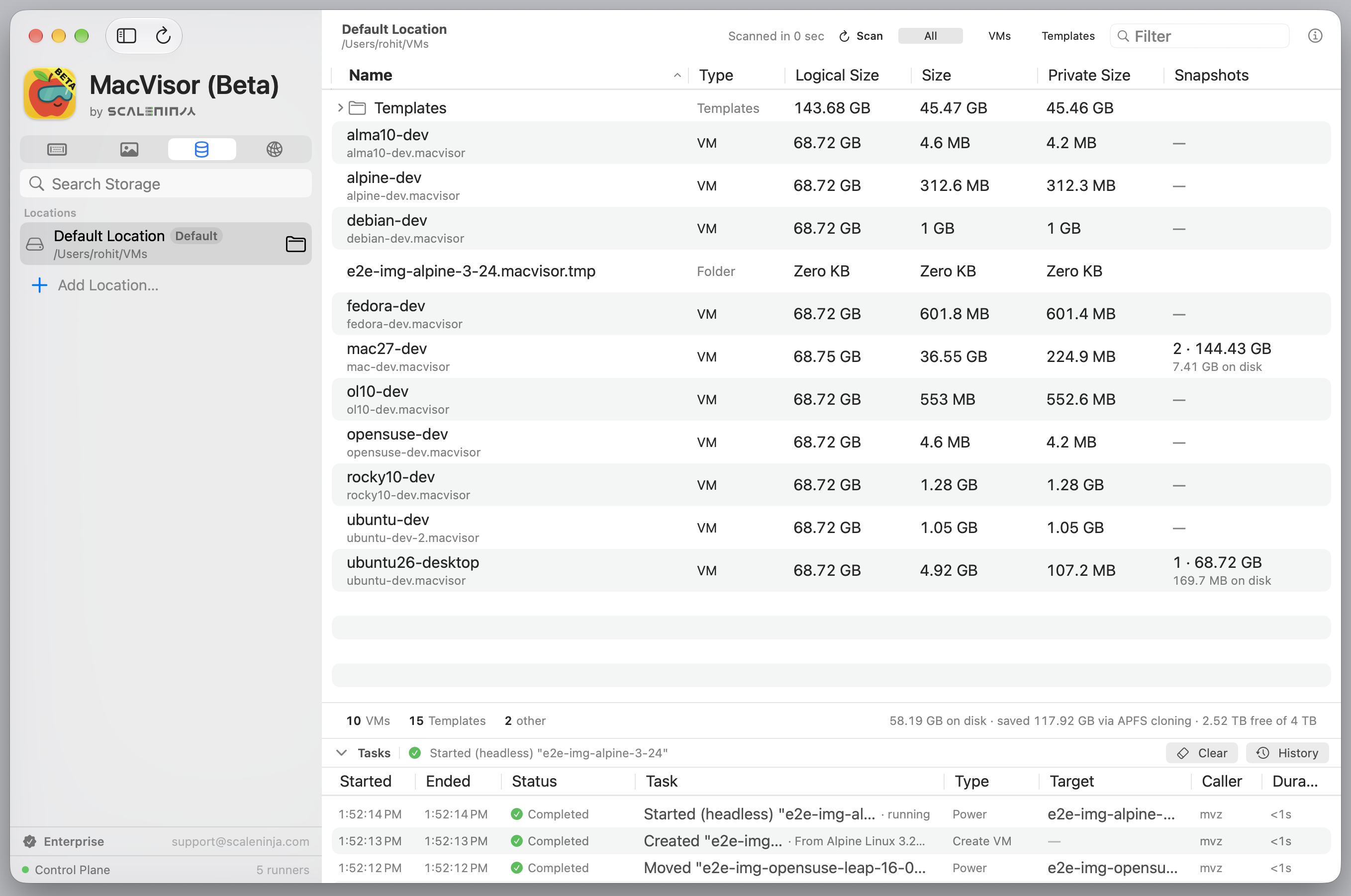
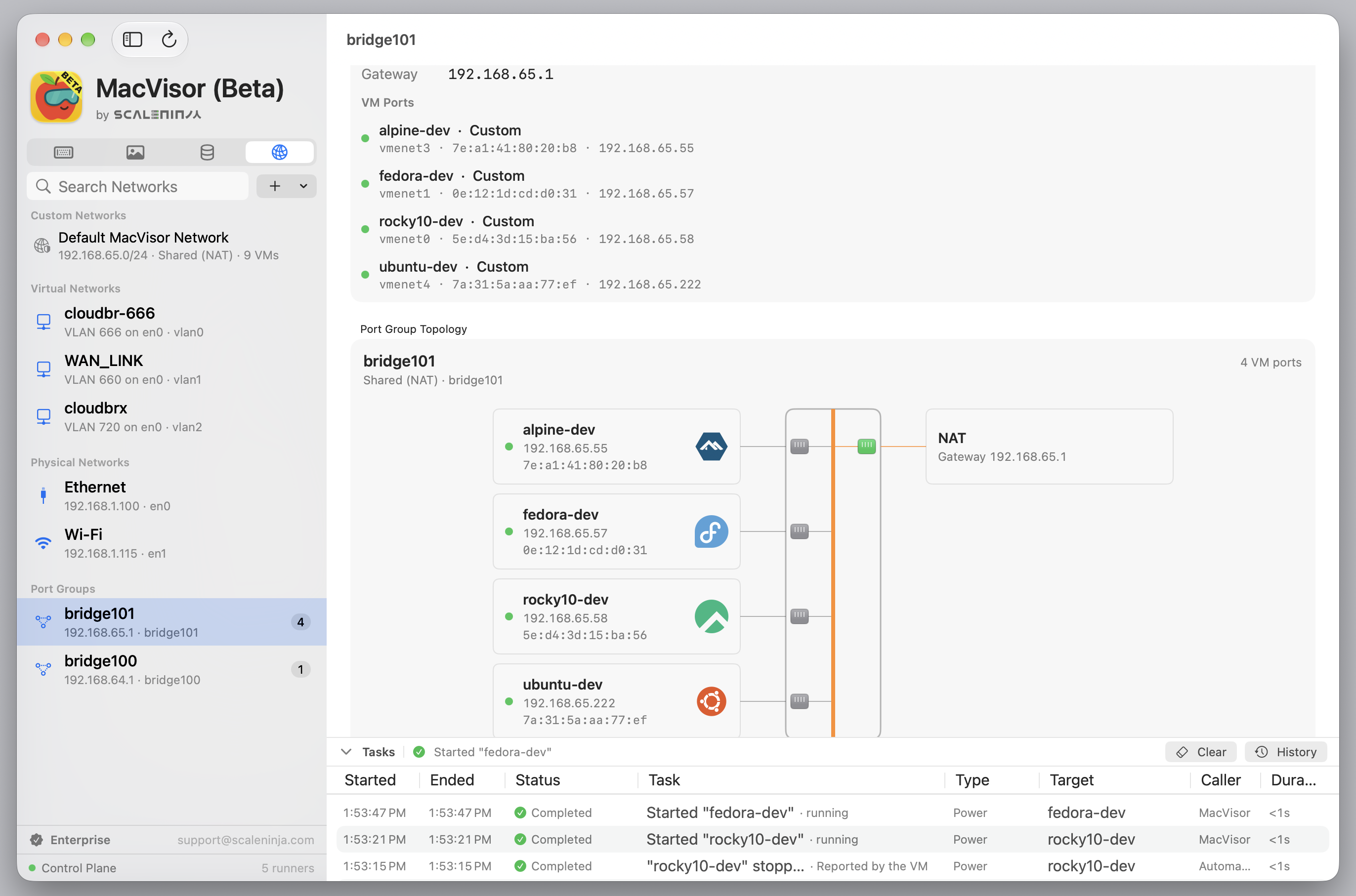
The + button follows the section: new VM; image or installer from a file (qcow2, raw, .xz, .ipsw; dropping a file on the Templates list works too); storage location; custom network or VLAN interface.
A storage location that cannot be read, because it is unmounted or not yet permitted for the background service, says so in place of its VMs, with a button to the right Settings pane. See Storage and sharing.
Dashboard
With no VM selected, the main area shows the host:
- Host resources: CPU, memory, GPU, and VM-volume storage, with the last minute of history.
- Resource Allocation: vCPUs and memory assigned to running VMs against capacity, and provisioned disk against the volume. Overcommitment is flagged, not blocked.
- Inventory: VMs by state, templates, snapshots, networks.
- Control Service: reachability, PID, runner count, default location, log paths, with buttons to refresh, restart, open logs, or enable the service.
- Unattended Auto-Start appears when a VM is set to start at login. See Always-on host.
VM tabs
- Overview: live CPU, memory, and network, configuration, guest tools status, addresses, port forwards, memory balloon, USB storage, notes, and lifecycle actions. Also where a saved session that will not restore is explained (Try Again / Start from Disk…), and where Flatten Disk appears for disk layers no clone uses.
- Snapshots: take, revert, clone, export, delete.
- Settings: the settings pages, in the window. See VM settings reference.
A template shows only Snapshots and Settings.
Task pane
Downloads, installs, restores, migrations, transfers, snapshot work, and conversions run as tasks below the sidebar. A download shows size, speed, and time left; hover for the URL; cancel from the pane, and it resumes on the next pull. Each task names what started it: MacVisor, mvz, or a VM runner. Finished tasks move to Task History. The arrow keys move the selection; a double-click or Return opens the selected task in Task History. Tasks belong to the service, so they survive closing the app, and mvz tasks lists the same ones.
Settings
⌘, opens four tabs:
- General: Logout and Shutdown (what running VMs do when the Mac logs out, restarts, or shuts down: Shut Down VMs, the default, or Suspend VMs; see Run and control VMs), text size, and the menu bar item.
- Setup: the first-run checks and their fixes: background service, network helper and
mvzlink, Local Network, and Open at Login. - License: status, key entry, the trial key, refresh, deactivate. The license itself is kept by the background service, the same one
mvz licenseshows. See Activate your license. - Updates.
Open at Login opens the MacVisor app when you log in; first-run setup offers it, on by default. When its status reads Needs approval in Login Items, turn MacVisor on under Open at Login in System Settings → General → Login Items & Extensions; Open Login Items takes you there. VMs set to start at login start either way: the background service starts them, not the app.
Until you accept the license agreement in the main window, Settings, New VM…, and the items in the Assistant menu are unavailable.
Menu bar
Show MacVisor in the Menu Bar (Settings → General) lists every VM with its state and actions (open, start, pause, suspend, resume, shut down, reveal), so you can drive a headless host without the main window. When MacVisor opens at login with the menu bar item on, it starts hidden; the menu bar item or the Dock icon brings the window back.
Menus
- Logs: the app, service, and per-VM runner logs in a viewer. Report a Problem… zips them with a summary of this Mac's MacVisor state for you to send.
- Assistant: Task History, Restart Control Plane Service, Uninstall MacVisor….
- ⌘N makes a new VM.